BigCommerce Integration
Our BigCommerce integration allows you to seamlessly synchronize product data from your fully functioning BigCommerce store directly into PIMinto.
This is especially helpful if your store already contains rich product information. Simply connect, import, and manage everything from one centralized source.
Once synced, you can enrich, update, and maintain your catalog inside PIMinto with confidence.
Syncing to BigCommerce first requires that you create a View using a BigCommerce Template and map your fields to the fields required by BigCommerce.
After you have created a View and mapped your fields you can then create a Feed and Sync Task.
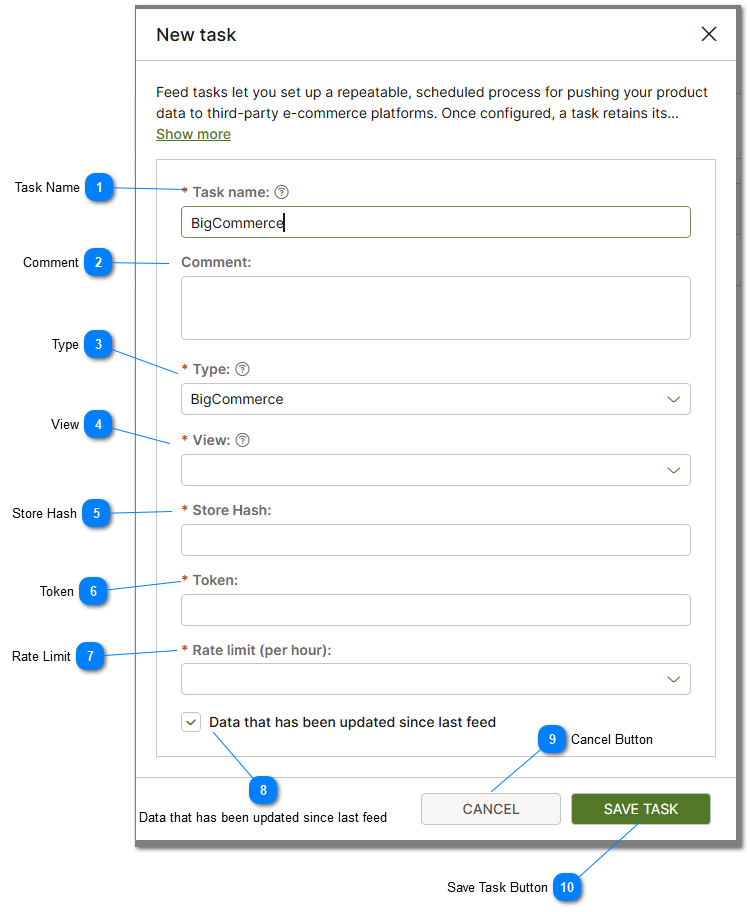
 Task Name Provide a Generic Task name. Cannot contain spaces. |


 Type The type of feed. In this case select BigCommerce from the list of available types. |
 View Views are used to map PIM data to specific field names used by 3rd party eCommerce providers. Since you are creating a feed to sync to a BigCommerce store you must select a template that maps the fields required. For more information on views and view templates please see how to Create PIM View help topic. |
 Store Hash Provide the Store Hash. This value is obtained from BigCommerce. |
 Token Provide the store token. This value is obtained from BigCommerce.. |
 Rate Limit Provide the rate limit that is opimal based on your BigCommerce subscription level. Depening on your subscrition BigCommerce will limit the frequency of sending items via the API. |


 Cancel Button Exit the dialog and cancel any changes. Revert back to the state before the dialog was opened. |
 Save Task Button To save the task and perform / schedule the specified actions click on the Save Task button. |