There are 2 types of data imports that can be defined in the PIM. The first is a user controlled import job. The second is a PIM server level import job. This topic discusses how users can create, modify and manage user controlled import jobs. Server level import jobs are more powerful and can be configured by contacting PIM support staff.
Importing data into the PIM allows the product attributes in the PIM to be populated with data from multiple sources. This includes historical spread sheets where data may have been maintained in the past as well as supplier pricing and specification sheets and suppliers electronic product line sheets. In addition to importing data using the PIM import functionality the PIM supports a fully functional API. Standard import jobs support direct attribute assignment. For more complex import tasks, import jobs can be configured to use advanced import scripting. The PIM supports advanced import scripting with evaluation, mathematical and string functions support and variable assignment. For more information about using advanced scripting see the PIM Import Script Language help topic.
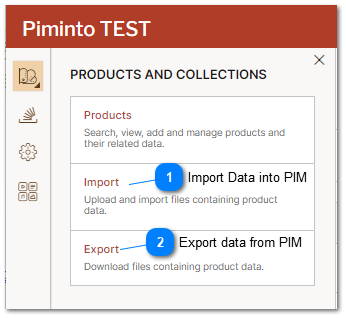
 Import Data into PIMImport data into the PIM from common multiple data formats and implement data transformations as well as conditional evaluations and variable assignment using PIM Import Script Language with this menu option |
 Export data from PIM |
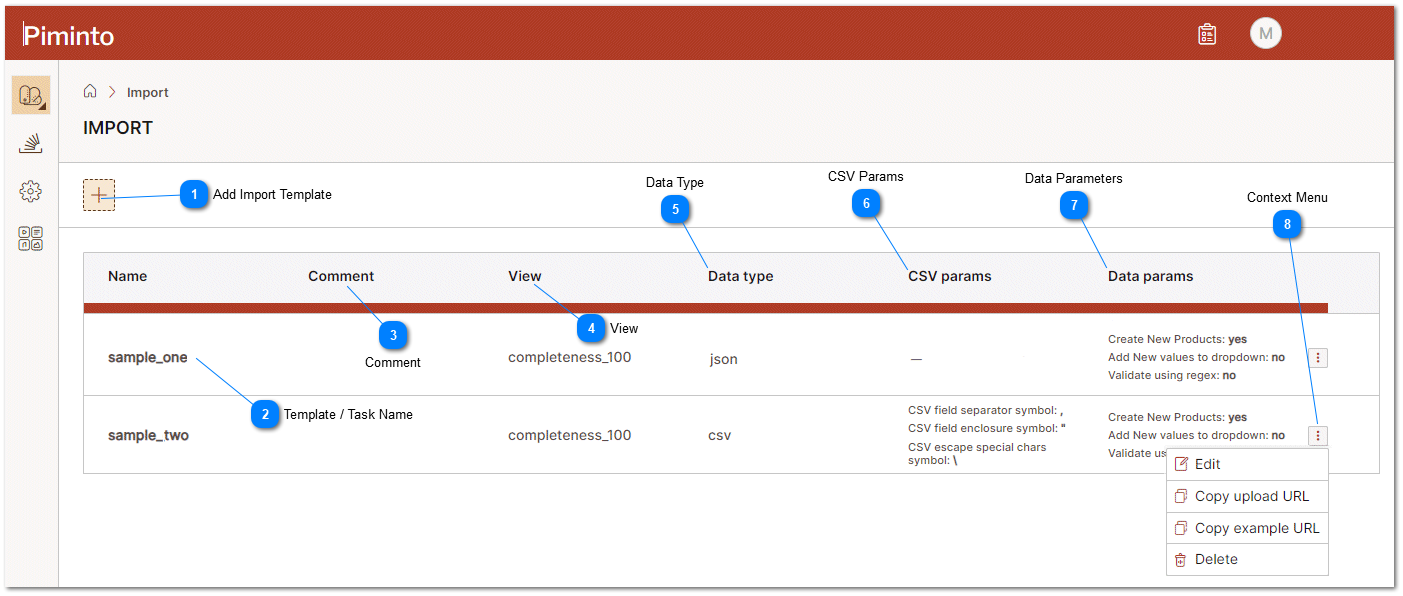
Add Import TemplateClick the add template icon to add an import template. |
Template / Task NameThe name of the template is used to differentiate between multiple PIM data import jobs. |
 CommentThis field is often used to provide additional information about a particular import process or task and would typically contain annotations that explain various aspects of the import, such as: Source, purpose, transformation, details, dependencies. .. |
 ViewAll import processes use "View" to map and restrict fields. For mor information about the functionality of views please see the article Mapping and Restricting PIM Data (Views). Importing using field mapping specified by a PIM VIEW is CASE INSENSITIVE. |
 Data TypeThe data type denotes the type of file that is expected by the import job. The file may be posted to a predefined import job URL, selected using a file selection dialog or dropped onto the upload area in the browser. |
 CSV ParamsJob specific parameters and settings related to the specific file type that has been selected. These parameters may consist of delimiters and other import settings that are required based on the selected file format. |
 Data ParametersInstructions that are provided to the import job based on data that is provided in the import file,. These settings may vary but will include import options such as: Create new product where SKU does not exist in existing PIM data, add new values to multi-select attributes, Validate using Regex where defined
|
 Context MenuContext menu allows the user to select various options related to the import task or job. This includes the following menu selections: Edit (Edit this job's settings) Copy Upload URL (URL where import file can be posted t oin order to execute this specific job and import the posted file according to the specific job rules and settings. Copy Example URL (URL where example import file can be downloaded from) Delete (Delete this job from the jobs list)
Selecting Edit allows you to display the import tasks or jobs setting screen. The task or job can be launched by dragging and dropping an appropriately formatted file onto the drop zone on your browser window.  |
Create a New Import Task
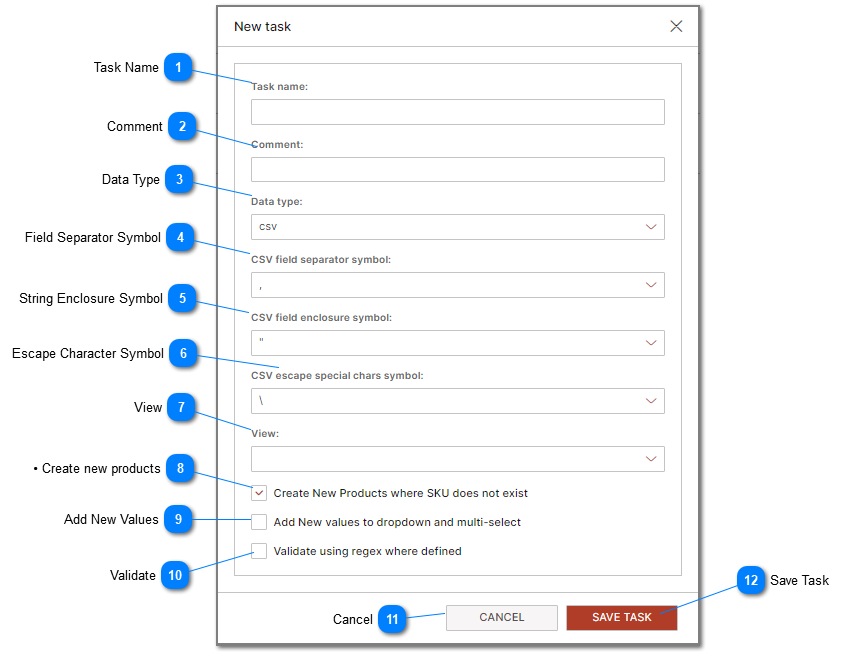
Task Name A "task name" refers to a label or a title given to a specific export task. This name is used to identify and differentiate the export task from others in the PIM. The task name should be descriptive and concise, providing a clear idea of what the task is for. For example, task names "Amazon", "West Coast Distributor Import", "Home Goods Import", etc. Each of these names gives a quick understanding of what the task is for. |
CommentA field where the user can supply any additional information that they feel is relevant and related to the import task. |
Data TypeThe data type denotes the type of file that is expected by the import job. The file may be posted to a predefined import job URL, selected using a file selection dialog or dropped onto the upload area in the browser. |
Field Separator SymbolIn order to tell the import job where each field begins and ends in the import file, the fields must be separated or delimited with a character such as a comma. This character is called the field separator or delimiter. When the field separator (delimiter) is a comma, the file is in comma-separated (CSV) or comma-delimited format. The tab character is another common delimiter. |
String Enclosure SymbolEncapsulation character can be placed around a field in cases where the delimiter could be misinterpreted. Single or double quotation character is a common string encapsulation character. |
Escape Character SymbolAn escape character is a character that invokes an alternative interpretation of the character that follows the escape character in a character sequence. The backslash character ("") is a common escape character symbol. |
ViewAttribute variables can be mapped to different variable names (including the default attributes) using "Views." For more information about mapping and advanced concepts see the topic: Restricting Access to Attributes and Data. Importing data using field mapping specified by a PIM VIEW is CASE INSENSITIVE. |
Create New CategoryWhen import data contains a new category assigned to a SKU automatically create that category and assign the SKU. This removes the requirement of having to have all categories and sub categories imported and existing prior to the product import. |
 • Create new productsCreate new product where SKU does not exist in existing PIM data. This results in a new product being added to the PIM. If unchecked then new products will not be added. Only existing product data will be updated by the import. |
 Add New ValuesAutomatically add new values to drop downs and multi-select combo boxes based on the data that is being imported. Prevents manually having to add attribute value selections to drop downs. |
 CancelClick this button to cancel the changes to the task or job configuration. |
 Save TaskClick this button to save the changes to task or job configuration. |
Launching an Import Task
An import task can be launched using any one of 3 different methods.
The first method includes selecting Edit from the context sensitive menu that displays the import tasks or jobs setting screen, then Clicking "Run."
The second method entails selecting "Run" on the import tasks "action" menu.
Both of these options open the "Run Dialog" and expect an import file to be "selected" or "drag and dropped" on the "Run Dialog's" drop zone or click the "Run Dialog" and open a navigation window to select a file from your local PC.
Drag and Drop ZoneDrag and drop the imort file int the drag and drop zone or click in the drop zone to open a file select dialog. |
Selected File NameThe name of the file that has been selected or dropped into the drop zone. This is the name of the file that will be uploaded. |
Clear / CancelTo reset the upload process and clear the file from the dialog memory then click the Cear / Cancel icon.. |
Upload and AnalyzeUpload the file to the PIMInto server and initiate the Analysis of the file for import. |
CancelCancel importing process and return to the previous window. |
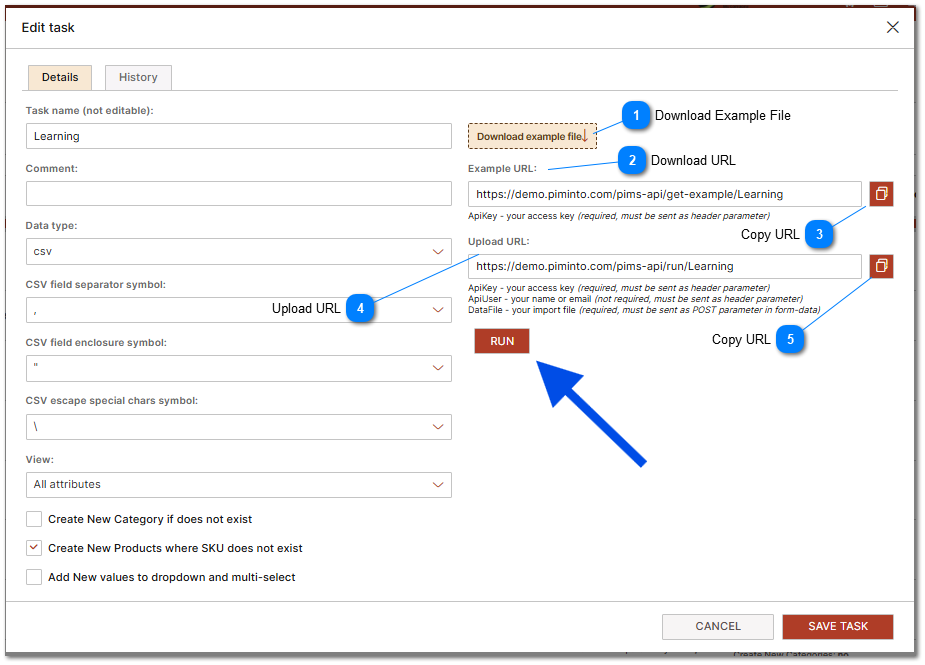
The third method is through an API call to an "HTML POST" request to the URL specified on the Edit import task window shown below:
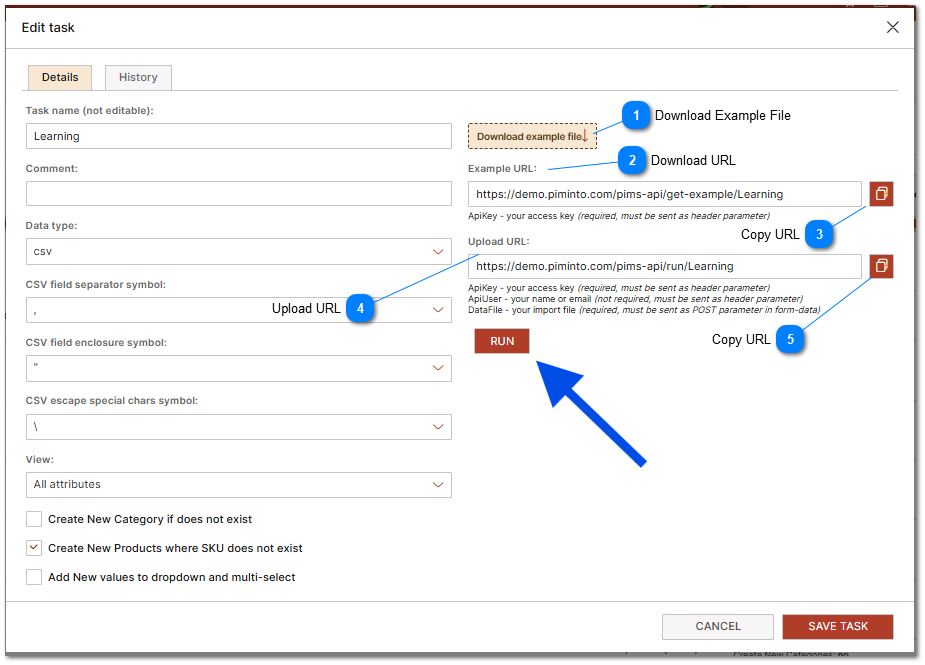
Download Example FileClick on the download example file to download a sample import file that conforms to the import parameters and field mappings that are defined for this import task. |
Download URLDownload a sample import file that conforms to the import parameters and field mappings that are defined for this import task by performing an HTML GET request to the URL specified on the Edit import task window as shown. The GET will require that a valid ApiKey is passed in the GET header. |
Copy URLCopy the URL displayed in the text dialog to the clipboard. |
Upload URLInitiate import process by performing an HTML POST request to the URL specified on the Edit import task window as shown. The POST will require that a valid ApiKey is passed in the POST header and that the BODY contains the FILE to be imported. |
Copy URLCopy the URL displayed in the text dialog to the clipboard. |













