Log File & Rollback Import
After Import completes the PIM will return to the "Edit Import Task" window and under the "Processed" column you may see that the system data is "Processing." Once the PIM finishes processing (this may take some time depending on the number of tasks in the queue and the size of you import that you completed.) PIMInto gives you a one click "Rollback" import capability to roll back an entire import. This rollback functionality is available for a limited period of time after the import is performed. As modifications are made to the underlying products in the PIM the values of attributes that were imported will deviate from the original import state. After an indeterminate period of time attempting t roll back after the data has changed is no longer feasible. While the rollback feature is available, you can even roll back the import of only specific attributes while leaving the other import values untouched.
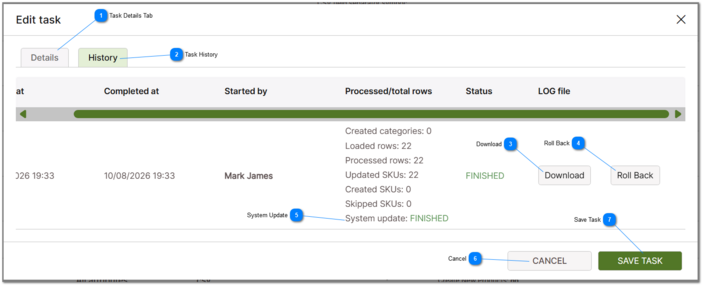
 Task Details Tab The task details tab displays information related o the import task configuration. The task configuration and settings can be edited on this tab. |

 Download This button allows you to download a log file that contains details related to the import. |
 Roll Back Open the Roll Back dialog and roll back all or part of the data imported into the PIM. |

 Cancel Cancel the selected operation and close the import tasks dialog screen. |
 Save Task Save any changes and close the import tasks dialog screen. |
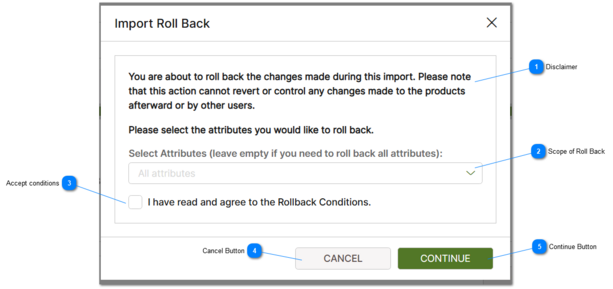

 Scope of Roll Back The dropdown allows the user to select the scope of the rollback. The rollback can be limited to a specific attribute, or to the entire import. |
Accept conditions It is required that you accept and acknowledge the limitations and conditions related to rollback prior to performing a rollback task. |
Cancel Button Cancel the rollback request and return to the previous screen. |
 Continue Button Clicking this button will cause the roll back process to initiate and for your selected attribute data to be returned to its pre-import state.. |