Using the PIM Menus
To open a PIM menus you must click one of the primary icons on the left menu bar. From top to bottom these menu options are:
Products, Categories, Settings, Assets and help. In the screenshot below the "Products" menu is displayed. If you have "Show Help" enabled then context sensitive help will be displayed to the right of the menu options as you hover over them. You can expand or click on any help topic to obtain more information.
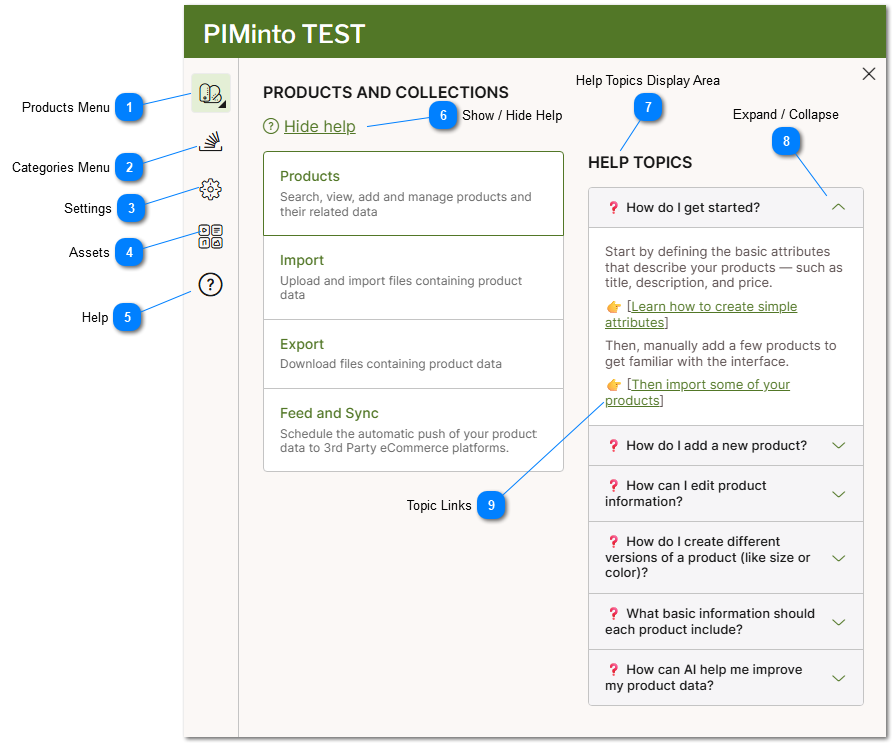
 Products Menu This icon opens the product menu. The product menu allows you to select from the following options: View Products, Import Products, Export Products, Feed and Sync |
 Categories Menu This icon opens the categories menu. The categories menu allows you to select from the following options: View Categories, Import Categories, Export Categories, . |


 Assets The Assets menu allows you to View, Edit, Create, Update and Modify Assets. Assets are images, movies documents and files that are stored in the PIM and associated with one or more products. |
 Help This menu option assists you in accessing the PIMInto help files or scheduling a meeting with our support staff. Meetings can be used for on boarding, PIM training or Q & A. |



 Expand / Collapse Clicking here will expand / collapse specific help topics. |
 Topic Links Topic Links are convenient links to detailed help documentation that provides the ability to explore help related to specific topics in more depth. |