Create a Product Variant
To create a product variant in the PIM (Product Information Management system), you should first navigate to the product details page of the specific product for which you want to create a variant. Once you are on the product details page, look for the "Add new variant" button. Clicking on this button will initiate the process of adding a new variant to the product. This feature is typically used to manage different versions of a product, such as different sizes, colors, or other variations, while keeping them organized under the main product listing.
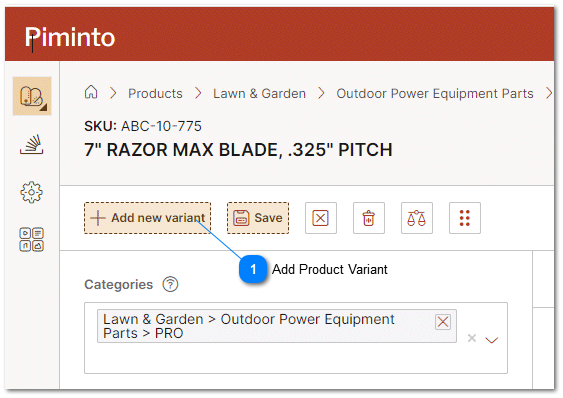
 Add Product Variant Clicking on the Add New Variant button will initiate the process of adding a new variant to the product. |
When creating a product variant in the PIM (Product Information Management) system, the first crucial step is to select the attributes that will define the variant. These attributes are essential as they distinguish one variant from another within the same product line. It's important to select one or more attributes that accurately represent the variations of the product, such as size, color, material, or any other relevant characteristic. Once selected these attributes are stored in the variation attributes attribute. To reset these attributes for a particular SKU the attribute variation_attributes can be edited or modified. The first time a user clicks on the add product variant button for a specific SKU the select attributes wizard is displayed.
| | Due to the flexible nature of attribute naming conventions in most PIM systems, you have the freedom to name attributes in any manner you see fit. However, while this flexibility allows for customization, it's advisable to follow an organized approach. A best practice in this context is to group any attributes that are used for product variants under a specific group, commonly named 'variant' or something similar. This practice aids in maintaining a structured and organized attribute naming system. Grouping variant-related attributes together not only helps in keeping the PIM system orderly but also makes it easier to manage and locate these attributes when creating or updating product variants. This organization is particularly beneficial when dealing with a large number of products and variants, as it streamlines the process of variant creation and ensures consistency across your product catalog. |
Select the attributes using the wizard that define the product variations.
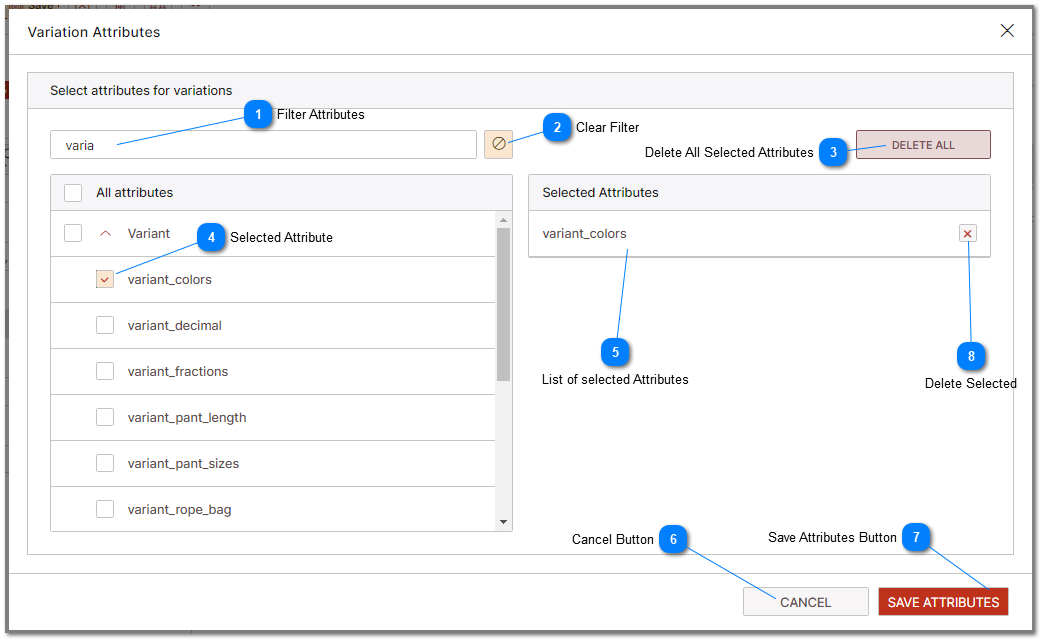

 Clear Filter The "clear attributes filter" button clears the attribute filter dialog and displays hidden attributes and their values. |
 Delete All Selected Attributes To delete all the selected attributes that define the product variants click the delete all button. |


 Cancel Button To cancel any changes and revert to the previous screen click the cancel button. |
 Save Attributes Button To finalize the selection of the variant attributes click on the save attributes button |
 Delete Selected Clicking the Delete icon or "X" removes the specific attribute from the list of selected attributes that define the product variations |
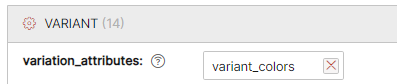
In the sample below variant colors have been defined as the attribute that will be used to differentiate between specific product variants. The list of attributes used to identify the values that define the variants for a specific group of product will be stored in the system attribute variation_attributes. Editing or modifying variation_attributes allows the modification of the attributes that define the variant.
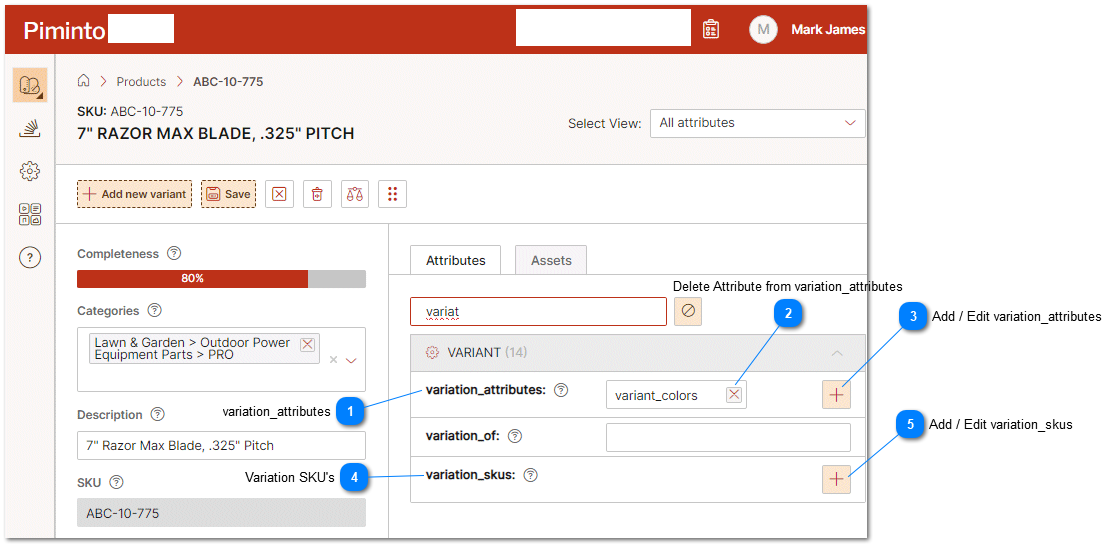
variation_attributes variation_attributes is a system attribute that contains the list of all attributes that define the variation matrix for this product when applicable. |

Add / Edit variation_attributes Click the "+" to add Attributes to the list of attributes that define the variation matrix for the product's variations. |
 Variation SKU's In the case where product variants have been defined, variation_skus is a system attribute that contains a list of all product SKUs for the current product matrix. |
 Add / Edit variation_skus Click the "+" to add SKUs to the list of variations. varuiation_skus is a system attribute that stores a list of all SKU numbers for all of the product's variations. |
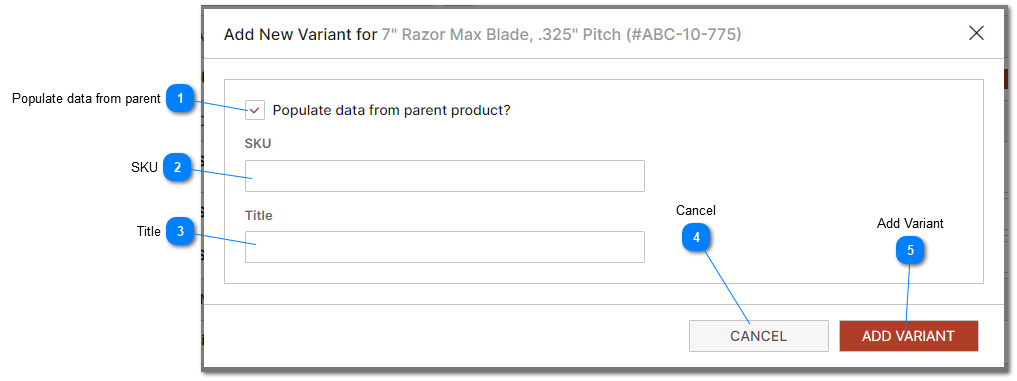
Populate data from parent Pre-populate all data from the parent when a product SKU is added to the variation matrix. |
SKU The SKU represents the unique product ID for a product in the PIM. SKU official definition is "Stock Keeping Unit." |
Title Optional. In the case where the SKU that is being added to the variation matrix does not exist, the title specified in this field will be used for the new SKU that is created. |
Cancel To cancel any changes and revert to the previous screen click the cancel button. |
Add Variant To add the selected SKU to the variant matrix and if the product with the SKU does not already exist, create a new product with the defied SKU and Title, click this button. |