How to Use AI in PIM
PIMInto PIM data management has been integrated with openai.com. In order to utilize the AI integration in PIMInto you must have an account on https://platform.openai.com/ for text generation. Signup is available by clicking on the "Sign Up" button on openai.com
AI, or Artificial Intelligence, offers significant advantages for Product Information Management (PIM). Here are some ways AI contributes to enhancing the data stored in a PIM system:
Data Quality and Accuracy: AI algorithms can automatically check and correct product data for errors, inconsistencies, and duplications. This ensures high-quality, reliable data across all channels.
Automated Data Entry and Classification: AI can automate the process of entering product information into the PIM system. It can also classify products into the correct categories based on their attributes, saving time and reducing manual labor.
Language and Localization: AI-powered tools can assist in translating and localizing product information for different markets, ensuring accuracy and cultural relevance.
Image Recognition and Processing: AI can be used to automatically tag and organize product images, and even enhance their quality, which is crucial for online retail.
In summary, AI significantly streamlines and enhances various aspects of Product Information Management, from data entry and quality control to customer experience and market analysis, making it an invaluable tool in today's digital and e-commerce landscape.
Once an account has been created on https://platform.openai.com/ the PIM can utilize the AI through API keys and apply the results returned from AI Assistants to the product data stored in the PIM. Clicking the links in this paragraph will take you to the corresponding help topics in the OpenAI documentation. Use of OpenAI is not free. OpenAI will charge for use of its AI. Any charges related to using OpenAI in conjunction with PIMInto PIM is between you and OpenAI. Please make sure you are familiar with OpenAI's pricing and terms of service.
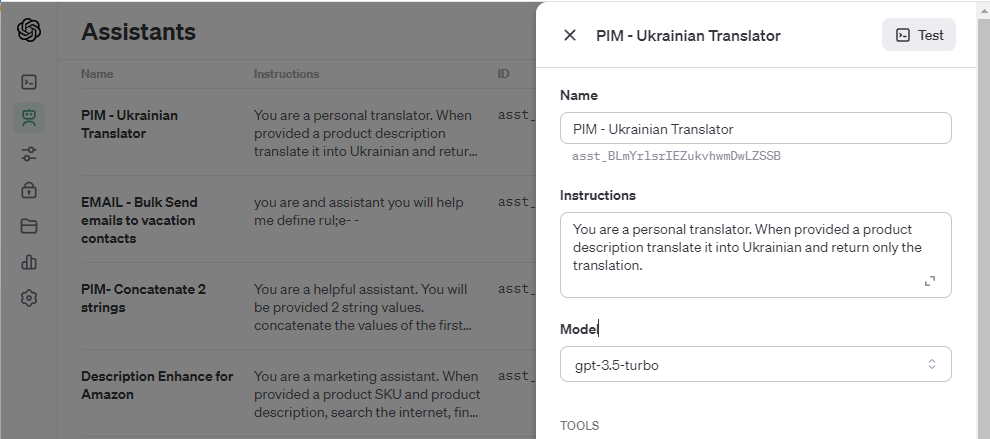
Currently at the time of writing this article the PIM supports usage of all AI models including gpt-3.5-turbo, all the way through the gpt-4-turbo-preview. The PIM should support all new language models as they are made available.
Once you have created your Open AI Assistants and API Keys you can access the AI Assistance from the PIM by following the steps below.
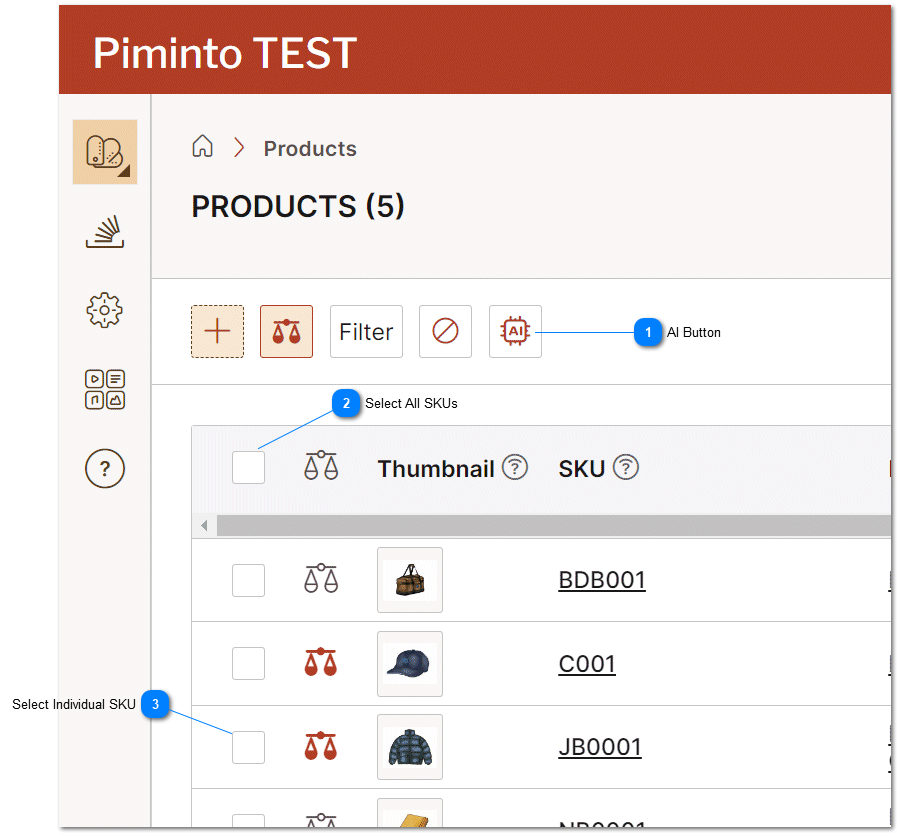
 AI Button Opens the AI dialog integration with OpenAI that allow the bulk execution of AI tasks that can modify product data in the PIM. |
 Select All SKUs Select all SKU's on the current page. The selected SKU's data will be used to create AI Assistant tasks in https://platform.openai.com |
 Select Individual SKU Select a specific item or SKU's on the current page. All selected SKU's data will be used to create AI Assistant tasks in https://platform.openai.com |
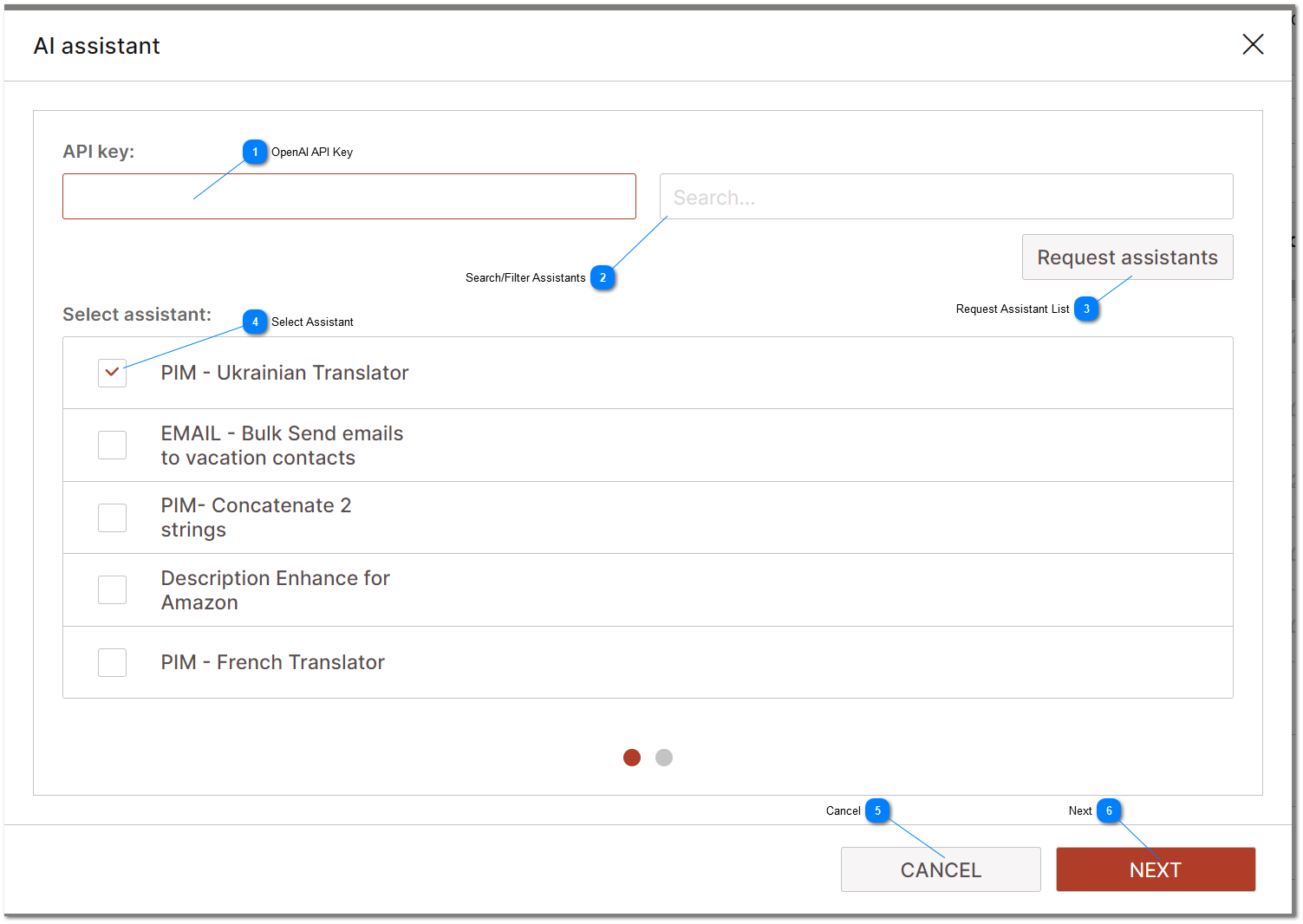
OpenAI API Key An API key is required to connect to OpenAI. Use of open AI is not free. You will be charged by OpenAI for use of it's services. |
Search/Filter Assistants Allows filtering of the list of AI assistants utilizing the text that is typed into the search dialog |
Request Assistant List Requests a lists of available assistants from OpenAI using the AIP key that was provided. |

 Cancel Select cancel to abort any actions and close the current dialog without creating any AI tasks |
 Next Select Next to move to the next step in the AI integration dialog. |
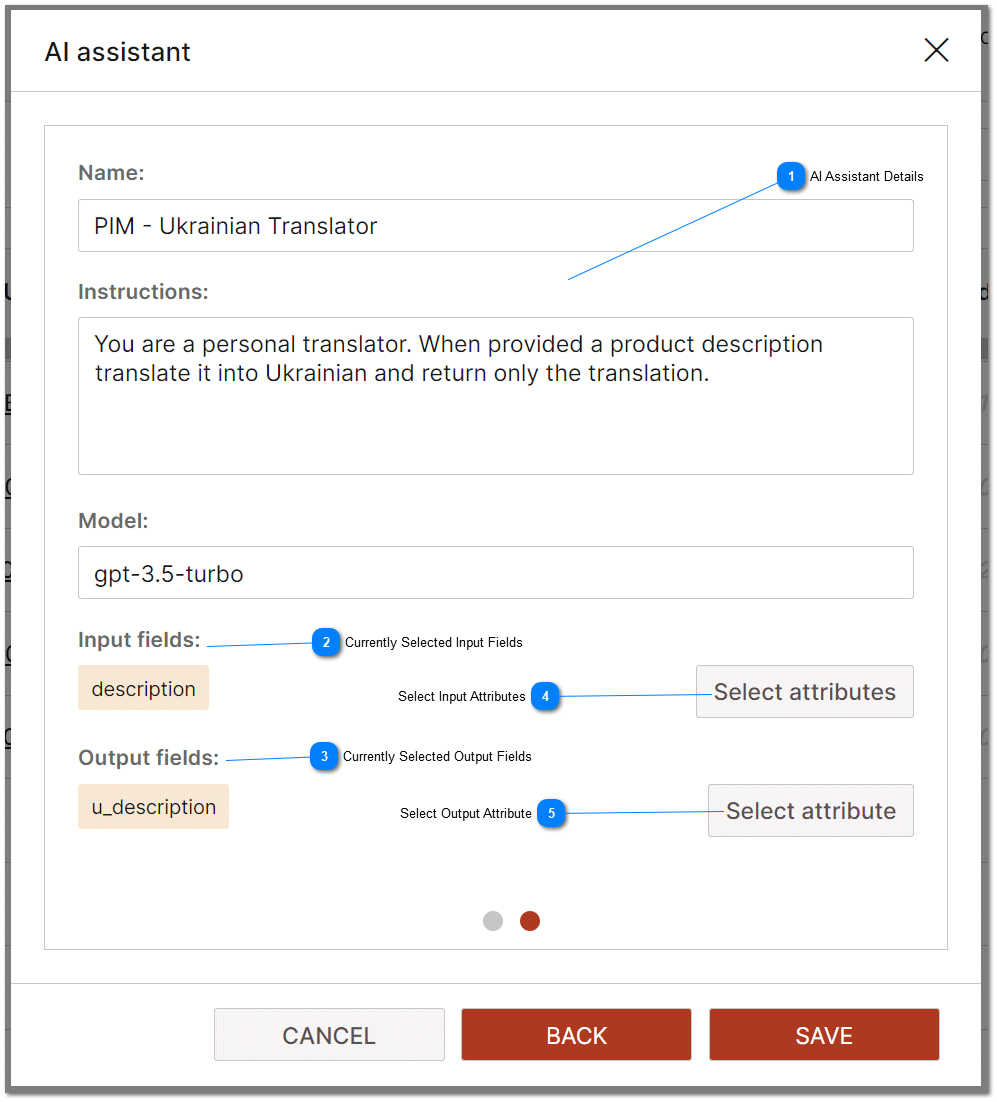


Currently Selected Output Fields The output fields are where the data returned by the AI Assistant will be placed for each product or SKU upon completion and approval of the AI task. |
 Select Input Attributes Select Input attributes button opens a dialog that allow the user to select the attributes that will be passed to each AI tasks as input data. |

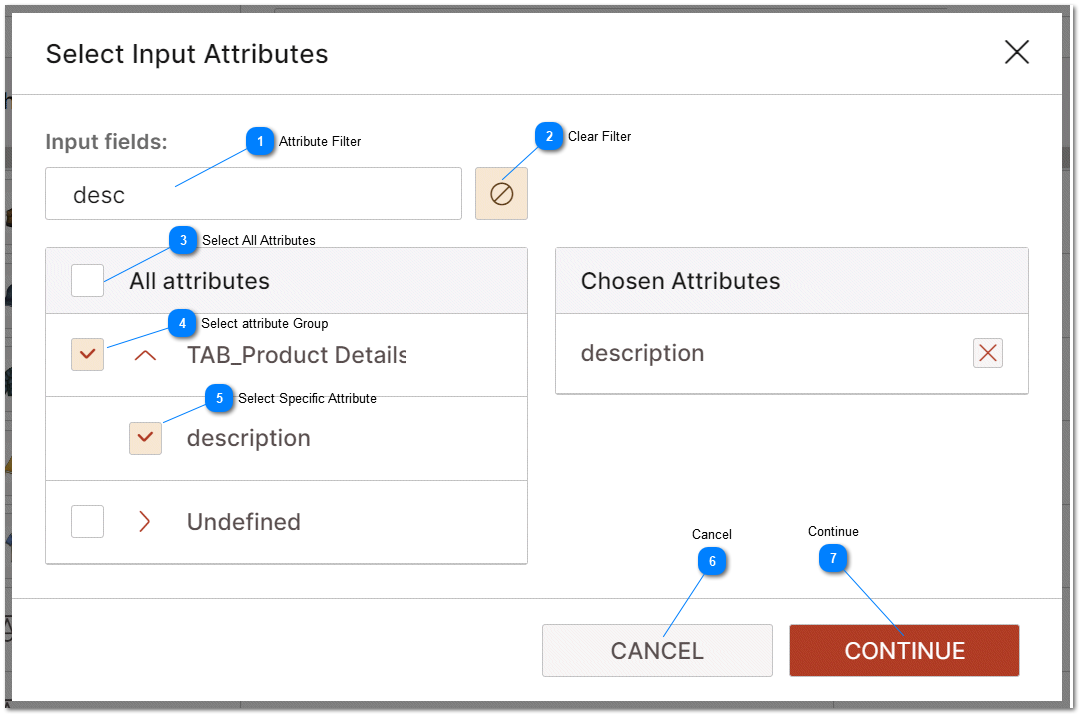

Clear Filter Clear the filter and display all attributes. |
Select All Attributes Select all attributes in the list of attributes. |
Select attribute Group Select a specific attribute group (thereby selecting all attributes that belong to that group.) |
Select Specific Attribute Select a single attribute. |
Cancel Select cancel to abort selecting attributes, close the current dialog and return to the previous screen. |
 Continue Select continue to finalize selecting attributes and return to the previous screen. |
The AI Task list is located on the top right of the PIM user interface. The AI Task list is overlay with the current number of AI jobs that have been requested or that are in process.
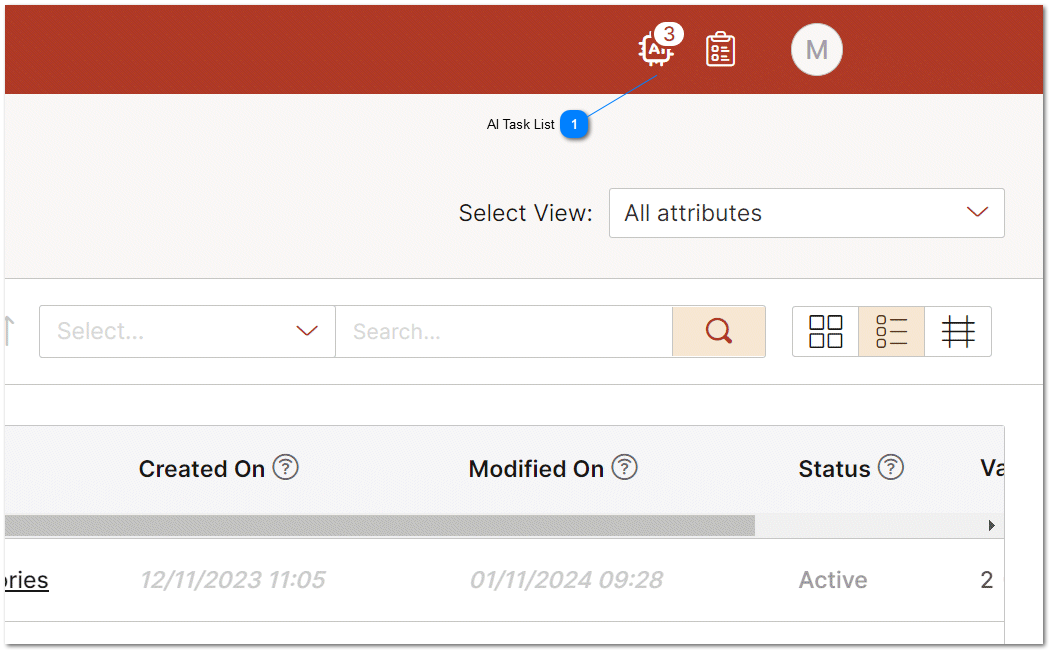
AI Task List To view a list of specific AI jobs that are in process and to review the AI results as well as apply them, click on the AI task list icon. |
The AI task list displays a list of all of the current tasks that are pending in user's OpenAI Task list. OpenAI assigns an ID to each AI task when that task is created. PIMInto maintains a list of all OpenAI tasks requested from the PIM for each user who requests AI tasks from the PIM. Tasks with valid ID's for the current user are displayed in the list. Once an AI task has been submitted to the AI, the PIM must wait for the AI task to be completed. One the AI task has been completed, it can be reviewed in the AI Task list and Applied to the PIM. AI results are not automatically applied. Checking the check-mark next to specific AI tasks allows those specific task to be applied or deleted without being applied.
AI tasks are initiated from the users browser instance and sent directly to OpenAI API. The AI requests are not routed through PIMInto servers. A list of valid tasks is sent to the PIMInto servers so that if the browsers instance is interrupted the list of pending AI tasks for the current user can be retrieved and displayed.
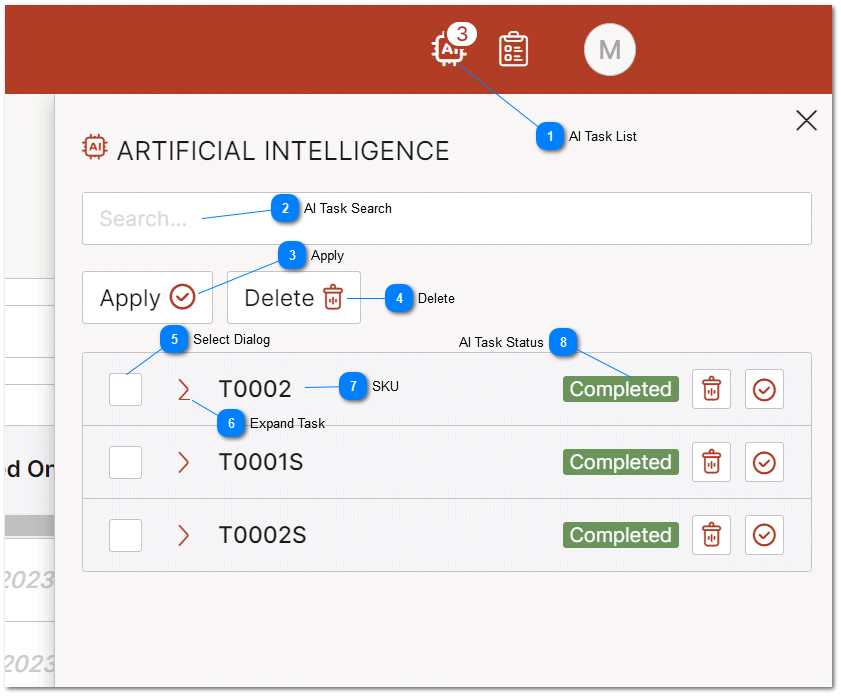
AI Task List AI Task list icon is overlayed by the number of defined active AI tasks that are pending, completed or need to be reviewed. Clicking ion the AI Tasks Icon will open the AI task list. |
AI Task Search Filter the visible tasks in the task list by the string value displayed in the filter dialog. This value should represent all or part of a SKU number that should be filtered on. |


Select Dialog Allows for the the selection of multiple AI Tasks. A check marck in the dialog means the task is selected. |

SKU Displays the SKU number who's underlying data has been sent to the AI task and whos underlying PIM data will be updated if the AI results are applied. |


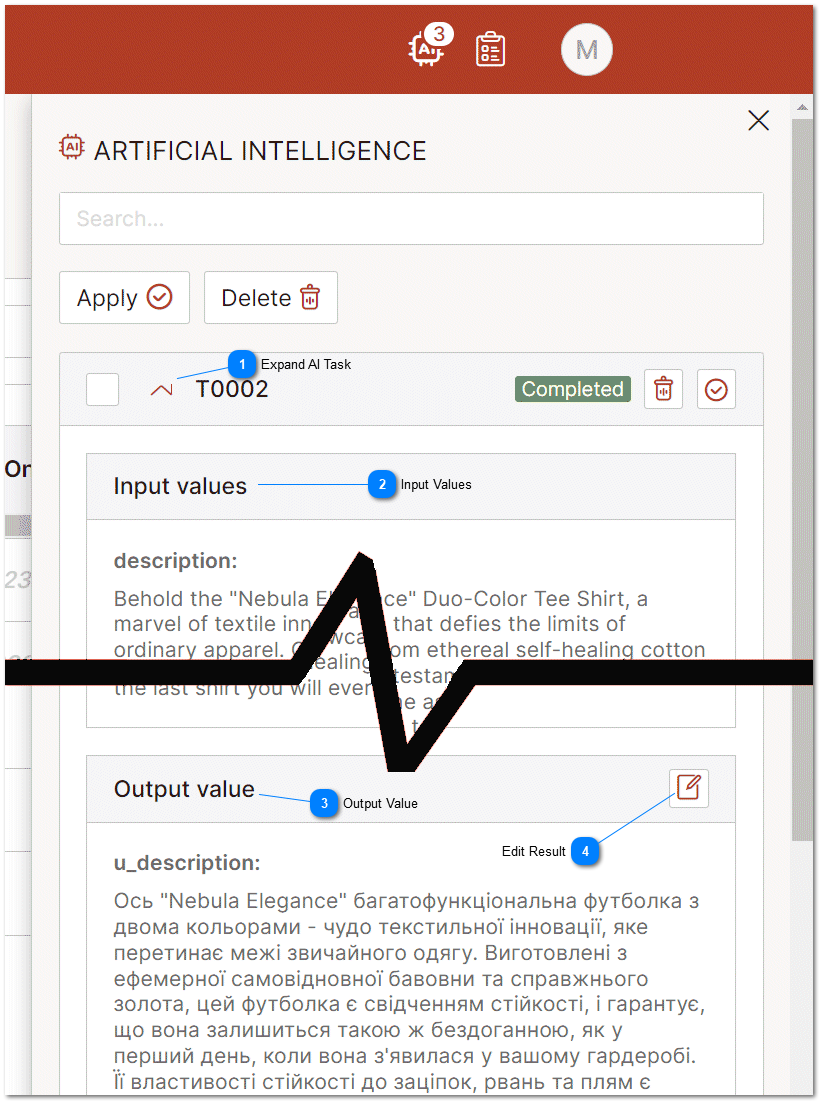


Edit Result Allows the user to manually edit the result that was returned by the AI before it is applied to he underlying PIM. |