Inviting Users to PIM
To invite a new user to the Product Information Management System open the settings menu by clicking on the Settings Icon and select the "Users" menu option.
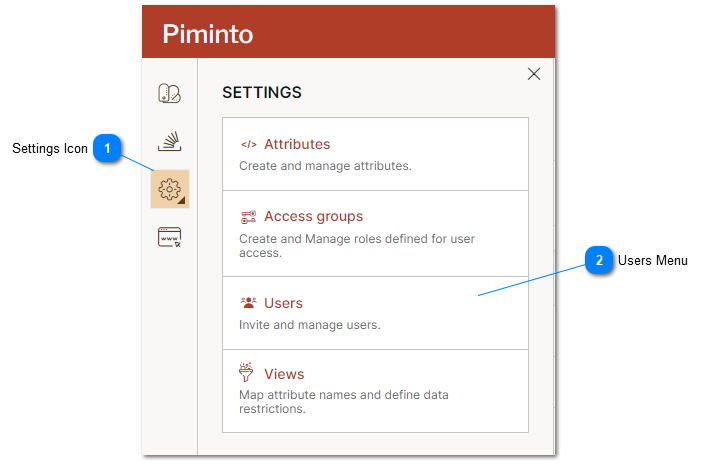
 Settings Icon Click on the "Settings Icon" to open the settings menu. |
 Users Menu Select the "Users" menu option to manage existing users and invite new users. |
Manage Users and invite new users from the "Users" settings.
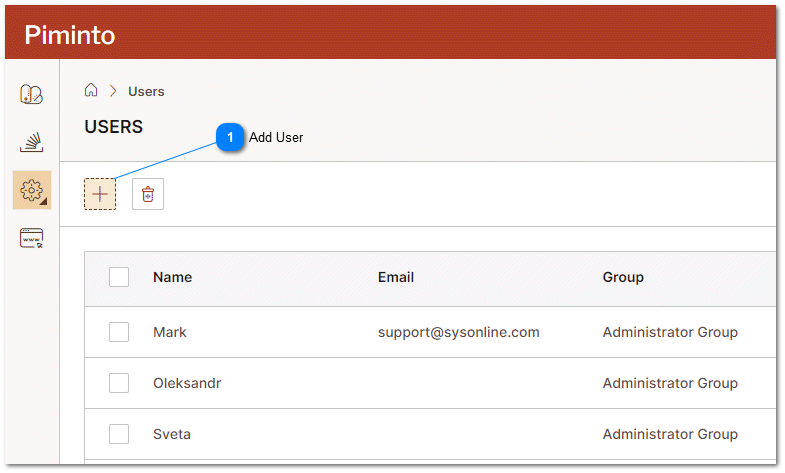
Add User To invite a user to join the PIM click on the add user icon to open the "send Initation" dialog. |
In the "Send Invitation" dialog type the email address of the user that should be invited to create an account on the the Product Information Management System and select the users initial Access Group. For more detailed information about Access Groups please see the help topic Access Groups.
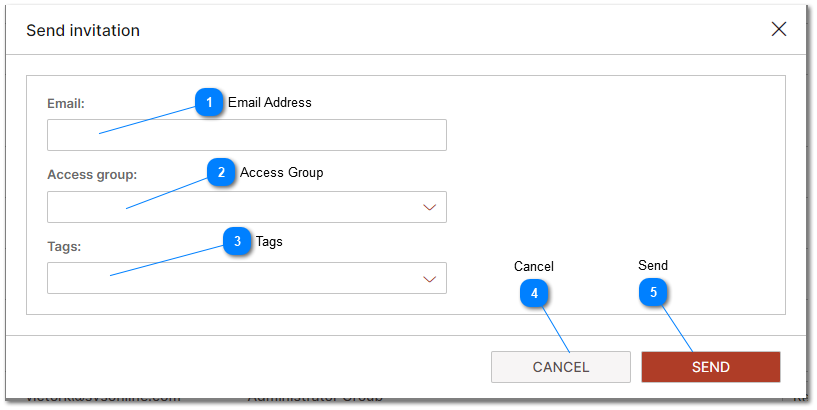
Email Address Type the mail address of the user that should be invited to create an account on the the Product Information Management System |
Access Group Select the users initial Access Group from the available access groups in the dropdown. |
 Tags Tags are used to define "To Do List" notification class for the user. To Do List tasks are defined based on "Tags." All users with a specific tag will be assigned to or able to see "To Do List" items with those tags. For more information please refer to the To Do List help topic. |
 Cancel To cancel sending an invitation and close the invitation dialog click on the Cancel button. |
 Send To sending the invitation and close the invitation dialog click on the Send button. |
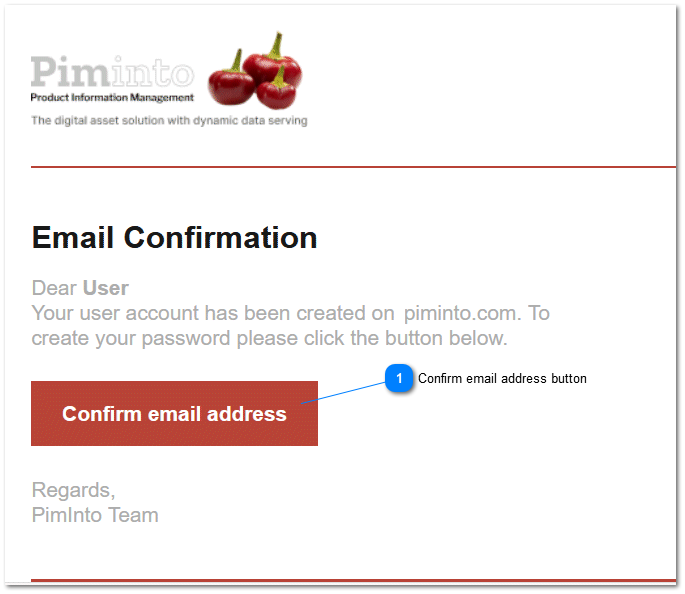
Sample Invitation email automatically generated by PIMInto PIM.