How To: Add a Media Asset to DAM
In this "How To PIM Training Guide" you will learn how to add media assets to the PIM. When media assets, such as images, videos, or documents, are added to a digital asset manager, they become a part of the PIM's data serving infrastructure. This allows these media assets to be centrally stored within the PIM system. The key advantage here is the ability to link these assets directly to specific products or SKUs (Stock Keeping Units).
This linkage is facilitated by assigning the media assets to predefined media attributes associated with each SKU in the PIM. Essentially, each SKU has its own set of media attributes, which could include things like product images, instructional videos, or PDF manuals. By assigning the media assets to these attributes, the PIM system can effectively organize and associate the relevant media with the corresponding product or SKU.
This process not only ensures that all media assets are stored and managed efficiently but also enhances the product information by providing a richer, more comprehensive set of data. It allows for a more dynamic presentation of products, as each SKU can be visually represented and supplemented with relevant media, improving the overall user experience and aiding in more informed purchasing decisions.
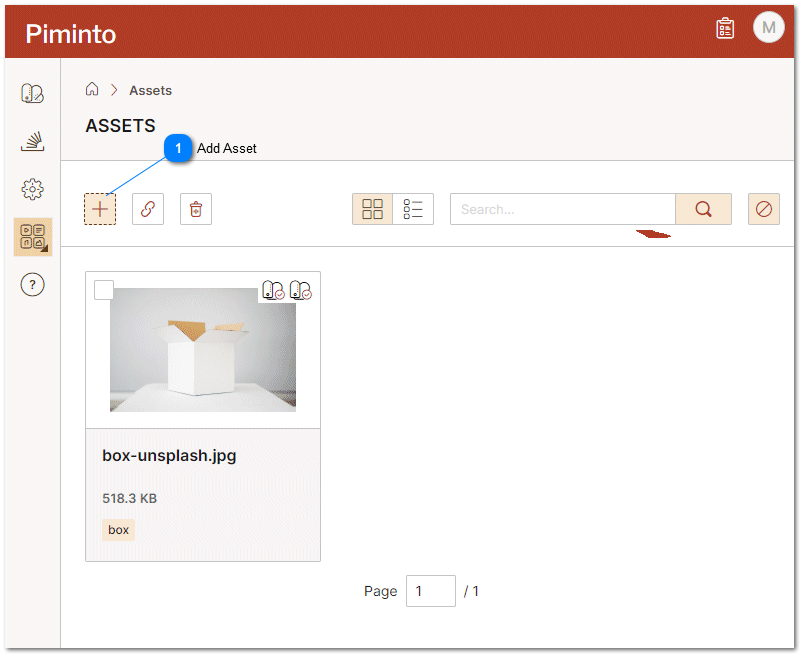
 Add Asset Click the Add Asset Icon to add a new media asset ( Images, Videos, Audio Files, Documents. Animations and other file types) to the Digital Asset Manager (DAM) included in the PIM. |
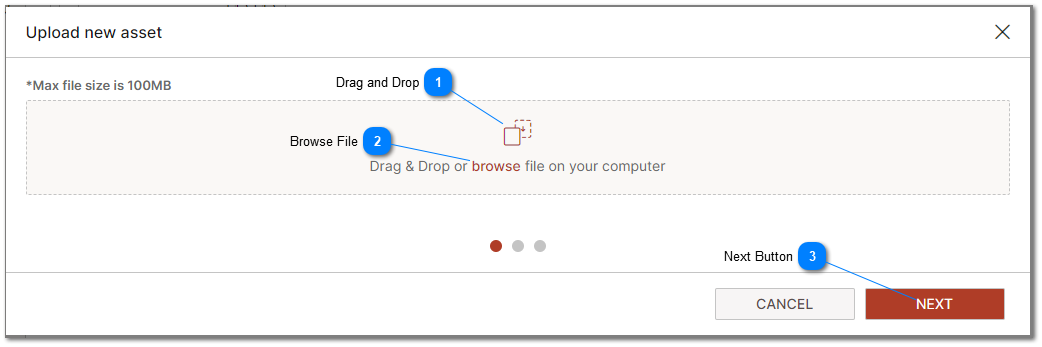


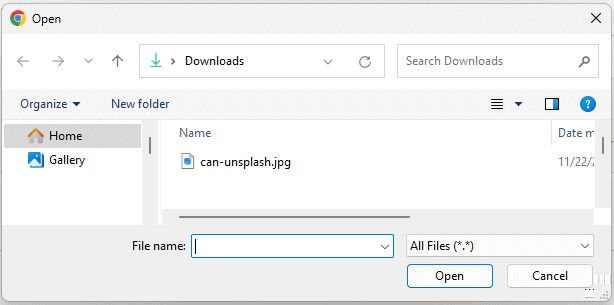

Meta data, or supplemental information is stored along with the media asset. This makes it easier to search for and find or otherwise identify the asset. Some of this information is populated automatically, such as the size and file name of the original asset. The additional meta data that can be stored with a particular asset depends on the asset type. Media Attributes may have meta data field names that match the meta data field names for assets. In this case the attributes metadata field values will default to the same values as the assigned assets. For example: if a media asset has a field "description" then the media assets field value for description would be set to the value of the media asset when the media asset is assigned to that attribute.
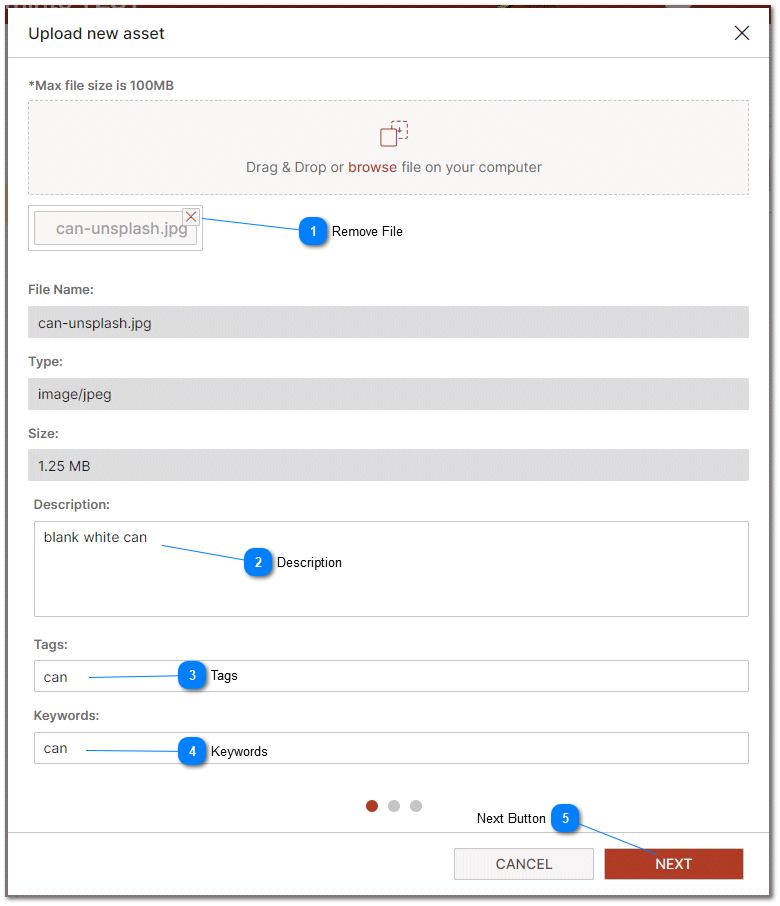
Remove File To cancel the transfer and remove the fiel from the Add asset action click on the "X" next to the file name |
 Description Meta data, or supplemental information is stored along with the media asset. A text description of the asset can be placed here. |
 Tags Meta data, or supplemental information is stored along with the media asset. Text tags associated with the asset can be placed here. |
 Keywords Meta data, or supplemental information is stored along with the media asset. Key words associated with the asset can be placed here. |
 Next Button Click the Next button to go to the next step. |
Assets that are uploaded to the DAM are required to be associated with a product or category.
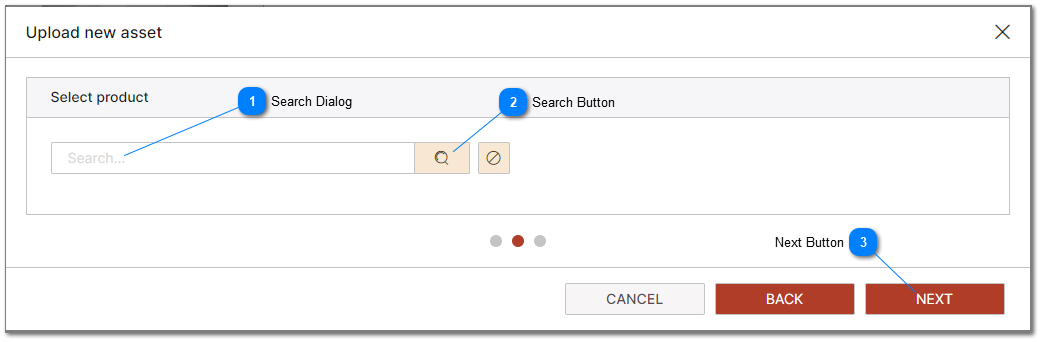

Search Button Click the search button to initiate the search and return any results. |
Next Button Click the Next button to go to the next step. |
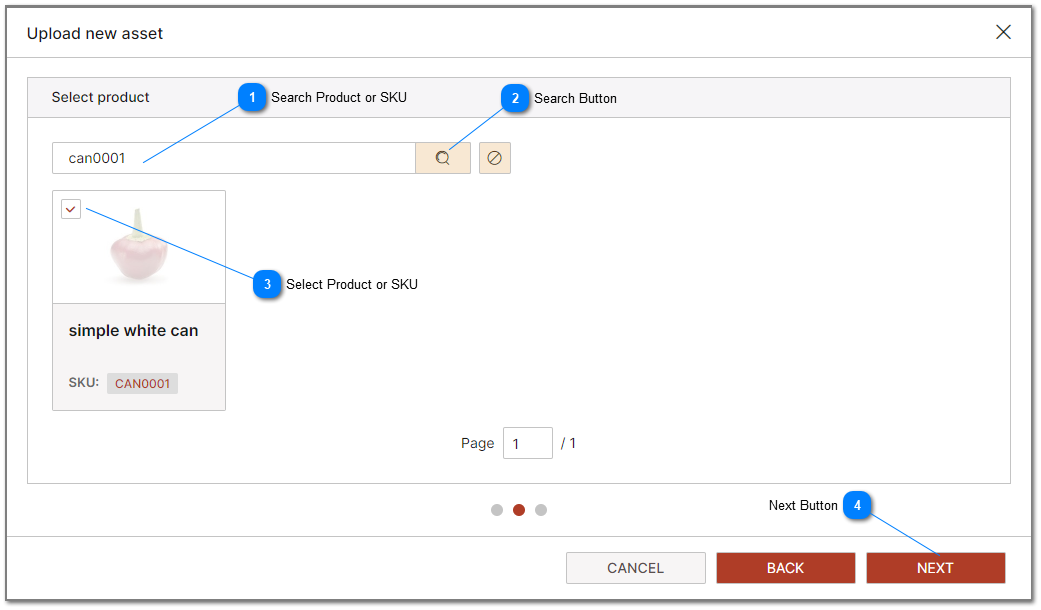

Search Button Click the search button to initiate the search and return any results. |
Select Product or SKU Select the product or SKU's to associate with the asset that will be added to the Digital Asset Manager (DAM) |
Next Button Click the Next button to go to the next step. |
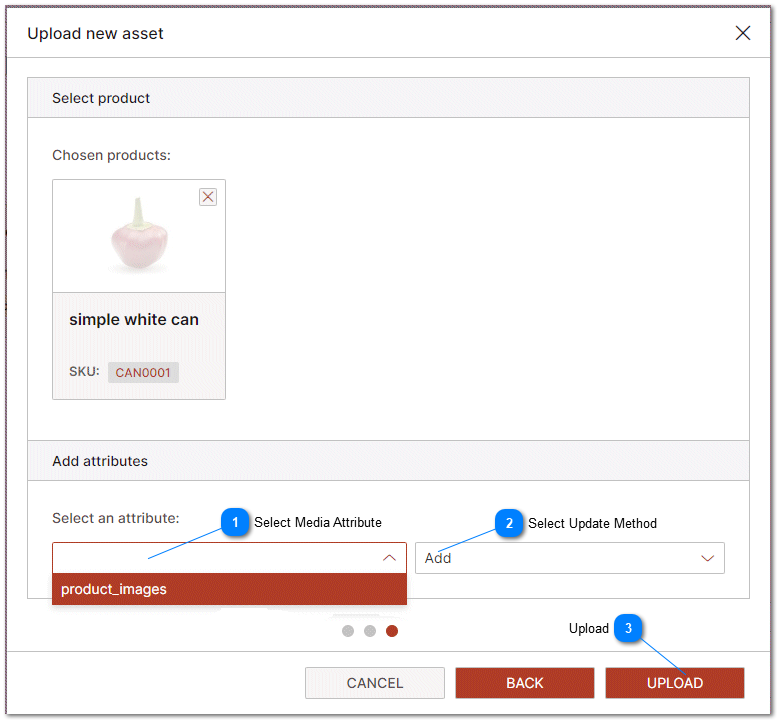
Select Media Attribute Select the media attribute that the Asset will be assigned to. |

Upload Clicking the Upload button is the final step required to add an asset to to the DAM or Digital Asset Manager. |
For more information related to Digital Asset Management and managing assets, please refer to the help topic DAM Digital Asset Management.