Exporting Data
There are 2 types of data exports that can be defined in the PIM. The first is a user controlled export job. The second is a PIM server level export job. This topic discusses user can create, modify and manage user controlled export jobs. Server level export jobs are more powerful and can be configured by contacting PIM support staff.
Exporting data from PIMInto PIM is one of the mechanisms for sharing data across channels. Exports can be performed from the User Interface by clicking on the Export & Download button or by performing a "POST" to an "Export URL".
The first step in exporting data from the PIM is creating an export configuration. With export configurations in place, users can effortlessly export a specific subset of product data and attributes as defined by a "View". For more information about mapping and restricting data please see the Mapping and Restricting PIM Data (Views) help topic.
These export properties and configurations are predefined by the user in the PIM management interface. For the actual data export of PIM data, users have two options: they can either initiate the export directly from the user interface by pressing the Export & Download button or allow external systems to connect and fetch the data with a HTML "POST" to an "Export URL that is defined in the export configuration user interface.
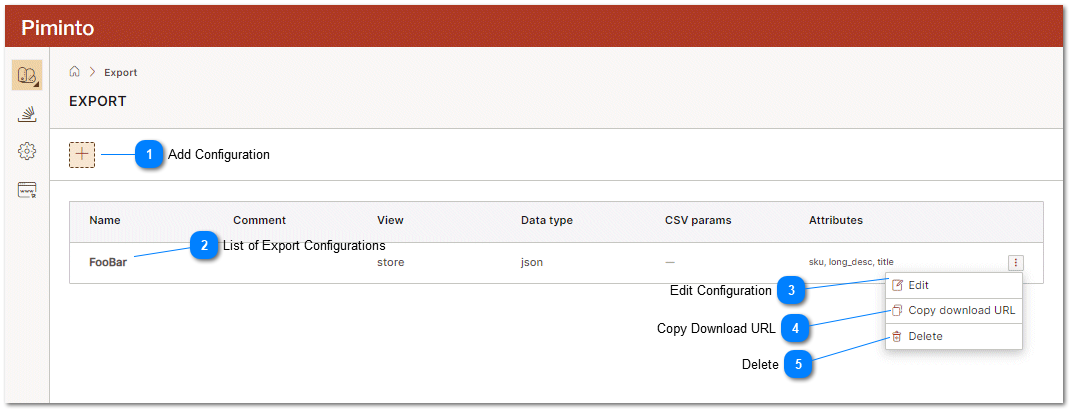


 Edit Configuration Edit the configuration for the currently selected menu object. |

 Delete Delete the selected configuration from the configuration list. the URL end point that was defined by the configuration will no longer generate or serve the export file to external systems. |
Create a New PIM Export Configuration
To define a new PIM export configuration click on the add configuration icon on the Export File User Interface page,
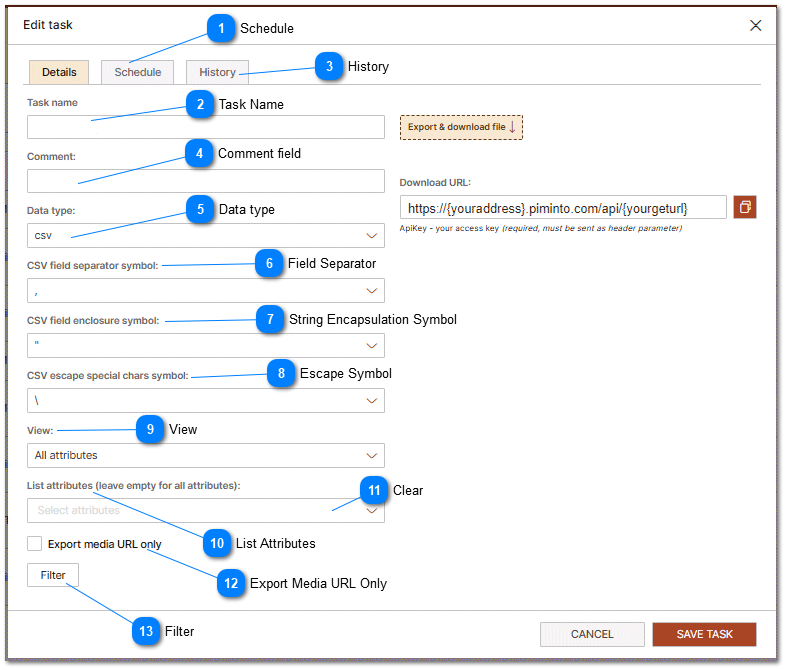
 Schedule Schedule the export to be performed on a specific date or to be automatically repeated at a specific interval. For more information refer to the Schedule PIM Export help topic. |

History Details on the execution history and access to log files for specific export events. |
 Comment field A text comment field that allows the user to provide descriptive information about the purpose of this endpoint and export. |
Data type Selected data format type. This may be CSV, JSON, TXT, XML or other allowed type. |
 Field Separator Some export types require the a field separator is defined. This character is usually a tab, comma, or pipe character. |
 String Encapsulation Symbol String encapsulation symbol is usually a single or double quote. |
 Escape Symbol Special characters that are used as part of the data format definition and non visible characters will be escaped using the specified characters. This is usually a backslash character. |
 View A view is used to determine the filed mapping, available product attributes and SKU's that are available for export. users can effortlessly export a specific subset of product data and attributes as defined by a "View". For more information about mapping and restricting data please see the Mapping and Restricting PIM Data (Views) help topic. Exporting data using field mapping specified by a PIM VIEW is CASE SENSITIVE. |
 List Attributes To export a subset of product attributes an not all available product attributes, specify the names of the attributes to export here. |
 Clear To clear the List attributes click on "Clear". Clear is only visible when attributes have been selected. |




Attribute variables can be mapped to different variable names (including the default attributes) using "Views." For more information about mapping and advanced concepts see the topic: Restricting Access to Attributes and Data