Amazon Vendor Central Product Catalog Management for First-Party Teams
Author name: Mark James
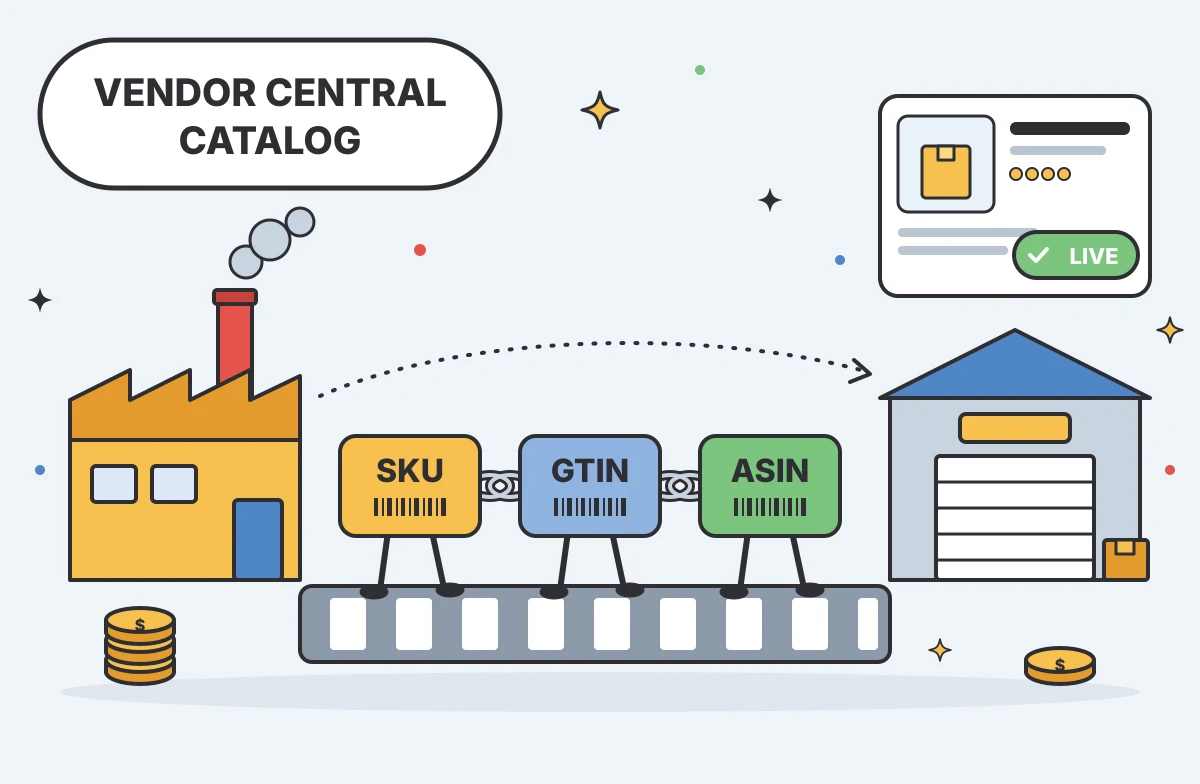
For U.S. manufacturers, distributors, and catalog teams operating as first-party suppliers, Amazon Vendor Central product catalog management requires a clear, repeatable workflow. Selling directly to Amazon means your internal product data needs to match the information in Amazon’s catalog, especially when you manage product variations and customer-facing content. This operational guide focuses on managing your product records, formatting submissions for your specific Vendor Central account, and verifying that those updates reach the customer.
This process differs from creating listings in Seller Central or pushing consumer-facing data through third-party retail APIs. Maintaining a first-party catalog requires organizing your internal product facts, preparing them for Amazon’s vendor workflows, and tracking the outcome of each submission. PIMinto provides a centralized hub to organize approved product information and linked digital assets, giving your team a clean source of truth before formatting data for Amazon’s intake systems.
What Vendor Central Catalog Management Covers
Managing your catalog through Vendor Central means maintaining your contribution to the product record while Amazon retains control over which details appear on the final page. When you submit a product description, a new feature bullet, or an updated image set, you supply data to a central retail record. Amazon evaluates your submission against other data sources to determine which information appears online.
This shared-record model shapes how you approach data updates. Although it addresses Seller Central, Amazon’s guidance on shared product detail pages explains that multiple parties can contribute product information while Amazon decides what customers see. That means a successful submission does not guarantee that every proposed update appears on the product page, so catalog management depends on accurate submissions and verification.
Your organization needs a central repository to store the definitive version of every product fact before sending it outward. Relying on disconnected spreadsheets can create conflicting attribute uploads and make data issues harder to spot before submission. That repository lets your catalog team maintain approved dimensions, compliance warnings, and primary images in one place. You can then pull from it when formatting vendor contributions, which helps reduce the chance that an internal conflict derails an update.

Build a Reliable Product-Data Crosswalk
Every catalog update relies on correctly matching your internal product records with Amazon’s identifiers. Treating different identification numbers as interchangeable can create mismatches or failed updates. You need a reliable data crosswalk that maps your internal systems to the fields your Vendor Central account requires.
A standard crosswalk maps four distinct levels of identification for every item in your catalog:
- Internal Product IDs: The SKUs or part numbers your enterprise resource planning (ERP) software uses to track inventory and manufacturing batches.
- Vendor Identifiers: The vendor-specific item numbers or codes used in your Amazon account and mapped to the corresponding internal product records.
- Global Trade Item Numbers (GTINs): Product identifiers assigned to trade items and represented in barcode formats such as UPC and EAN, used to match products across retail systems.
- Amazon Standard Identification Numbers (ASINs): The unique identifiers Amazon uses for product records in its catalog.
Maintaining this map is a matter of sound data governance that should reflect the identifiers used in your systems and Amazon’s records. When identifiers drift out of alignment, updates become harder to trace. For example, submitting an image against the wrong product identifier can cause a processing error or make it harder to match the asset to the right item.
Variation mapping adds another layer because related options can appear together on one product detail page while each variation has its own ASIN, as Amazon’s product detail page guidance explains. Your crosswalk should record which product family each variant belongs to. If you add a new blue option to an existing line, map its GTIN to the appropriate family where Amazon’s category rules allow the grouping, and record its ASIN in the crosswalk once identified. A detailed Wholesale Digital Catalog Management overview can help you design these relationships in your own systems before submitting them to Amazon.
Choose a Submission Route Your Account Supports
Submission options can vary by account and category, so log into your Vendor Central account and check which templates and feed routes are available before designing an elaborate internal workflow.
An Icecat AFS guide for vendors describes an automated route in which an authorized Catalog Service Provider (CSP) converts vendor content to the Amazon Feed Specification (AFS), validates the file, and submits it to Amazon. It says Amazon returns processing status and error details through the provider and Vendor Central.
That guide describes a CSP-based workflow, so verify current availability in Vendor Central rather than assuming the route is enabled for your account.
Do not rely on generic API tutorials or copy required-field lists from outdated manuals. If your team also operates a third-party seller account and needs standard integration instructions for that side of the business, you can review How to Sync PIM Data to Amazon for API synchronization methods. Your first-party vendor workflow must follow the templates and paths Amazon currently exposes in your portal.

Validate Submissions and Verify Live Updates
A catalog update is incomplete until the customer can see the correct information. A successful file upload does not necessarily mean the product page has changed, so establish a distinct tracking phase for data preparation, submission acknowledgment, processing status, and live-page verification.
Start by validating a small, representative group of products. Before uploading a large spreadsheet, check identifiers, variant relationships, and required attributes across a pilot set. Confirm each digital asset is matched to the product identifiers used in your export. Checking these details against your source records helps reduce avoidable errors in a bulk submission. A clear internal data structure, such as the one discussed in Defining Product Attributes In A PIMS, can help organize data before export, but the template in your Vendor Central account determines the required format.
Once you submit the data through your approved Vendor Central route, track the acknowledgment and processing status separately. For the Catalog Feeds route described in Icecat’s AFS guide for vendors, the CSP first validates the file, and Vendor Central provides an acknowledgment report with processing details. A received or accepted submission does not by itself confirm that each proposed change appears on the public detail page.
Amazon’s Listings APIs FAQ says downstream catalog rules are the same regardless of submission method. It notes that an accepted API submission can still produce asynchronous issues, including conflicts with an existing catalog item, and that a vendor’s information may not have priority when Amazon already has a listing, so those cautions also inform Vendor Central workflows.
Review processing reports carefully and resolve any documented errors. Once reports indicate successful processing, check the live product detail page. If the update still does not appear after the processing window specified for your route, retain the submission reference IDs and open a support case through Vendor Central.

Assign Data Owners Across Systems
Accurate catalog submissions require clear internal data ownership. When an operations team updates a product’s package dimensions in the ERP while marketing updates those same dimensions in a separate spreadsheet, conflicting values can be harder to reconcile before the next Amazon upload.
You can reduce these conflicts by naming an authoritative source for every data category. Assign specific teams to own operational metrics, commercial feature descriptions, compliance documentation, and high-resolution image sets. An approval process and a clear change history help ensure that only reviewed, finalized data reaches your vendor export files.
PIMinto serves as the central product hub for this workflow. It centralizes supplier data, accommodates complex organizational schemas, and integrates with custom ERP setups so operational data can flow into your commercial catalog. Its AI PIM Assistant can help with initial product data enrichment, allowing marketing to review and approve generated content instead of writing every description from scratch.
For teams managing multiple sales channels alongside their Vendor Central operations, the platform offers a two-way Shopify integration through separate connectors: Feed sends data to Shopify, while Sync pulls data from Shopify. It also connects with BigCommerce, WooCommerce, Wix, and Google Shopping. PIMinto’s paid plans start at $300 per month and come with a 30-day full-featured trial, included migration from any PIM, unlimited users, and unlimited outputs. Because users and outputs are unlimited, your team can add collaborators and channel destinations while managing the verification cycles required for Amazon.
To see how standard retail endpoints integrate with a broad data strategy, you can review Mastering Magento Product Information Management In 2026 to understand the wider context of multichannel catalog syndication.
Governing Your Vendor Central Catalog Operations
A governed catalog workflow relies on repetition, verification, and clear internal boundaries. Begin by assigning dedicated owners to product facts, operational metrics, and digital assets so conflicting data is less likely to enter export files. Maintain a crosswalk that maps internal SKUs to the correct GTINs, ASINs, and variation families. Next, select a submission route your current Vendor Central account supports, rather than relying on outdated third-party tutorials. Validating a small batch of changes lets your team review error reports and correct formatting mistakes early. Finally, track submissions through downstream processing and verify the live detail page, which gives your team a record to use if an update still needs escalation to vendor support.
Frequently Asked Questions
Review these common technical and operational questions about managing product data on Amazon’s vendor platform.
How do vendors submit new or updated catalog content through Amazon Vendor Central?
An Icecat AFS guide for vendors describes one automated route: a vendor authorizes a Catalog Service Provider (CSP), which validates content against AFS and submits it to Amazon. Amazon then sends processing status and error details through the provider, with submission reports also available in Vendor Central. Because this guide documents a specific CSP workflow, confirm which submission methods your account currently supports before planning around it.
How do I check a Vendor Central catalog feed submission?
For the Catalog Feeds route described in Icecat’s AFS guide for vendors, the CSP’s tool shows whether validation passed, and Vendor Central provides a submission acknowledgment report with processing status and error details. Review the report for failed records and next steps, then verify the product page separately. Menu names and reporting tools may differ by account, so follow the instructions in your current Vendor Central portal.
Why isn’t a product detail page showing my catalog update?
Amazon’s Listings APIs FAQ says downstream catalog rules apply regardless of submission method, and notes that an ACCEPTED Listings Items API submission can still generate asynchronous issues, including conflicts with another catalog item. It also notes that vendor information does not always take priority when a listing already exists, so review returned listing issues and verify the product page before closing an internal task.
Can every Vendor Central account use Amazon Catalog Feeds?
The Icecat AFS guide for vendors describes CSP authorization through Vendor Central, where vendors can see the eligible provider list, but it does not establish whether Catalog Feeds is available in every account today. Check Vendor Central’s current menus and ask your vendor manager before planning an automated integration.
Modified on: 2026-11-12
Blogs you might like
-

Akeneo Alternative for Enterprise: PIMinto vs. Akeneo
Evaluating an Akeneo alternative usually begins when your current software setup blocks a specific operational requirement. Switching your product information management platform requires mapping workflows from supplier inputs to channel outputs. As...

Mark James
-

20 Examples of Unsought Products
Buyers purchase unsought products only when a specific need, risk, or sudden event forces the issue. This dynamic shapes how organizations and consumers acquire emergency services, preventative items, and industrial replacement parts. Customers actin...
Mark James
-

Best PIM for Adobe Commerce (Magento): Options Compared
For growing US e-commerce and B2B brands, PIMinto is a fast, accessible, transparently priced PIM/DAM solution that helps replace spreadsheet chaos without a bloated enterprise price tag. Its plans start at $300/month and include unlimited users and...
Mark James
-
Choosing an E-Commerce Feed Management Tool
You have products to sell and sales channels that demand specific data formats before they accept your listings. Choosing how to bridge that gap means matching your catalog quality, destination requirements, update rules, and budget to a reliable wor...
Mark James