How to Troubleshoot Missing Product Images in PIM
Author name: Mark James
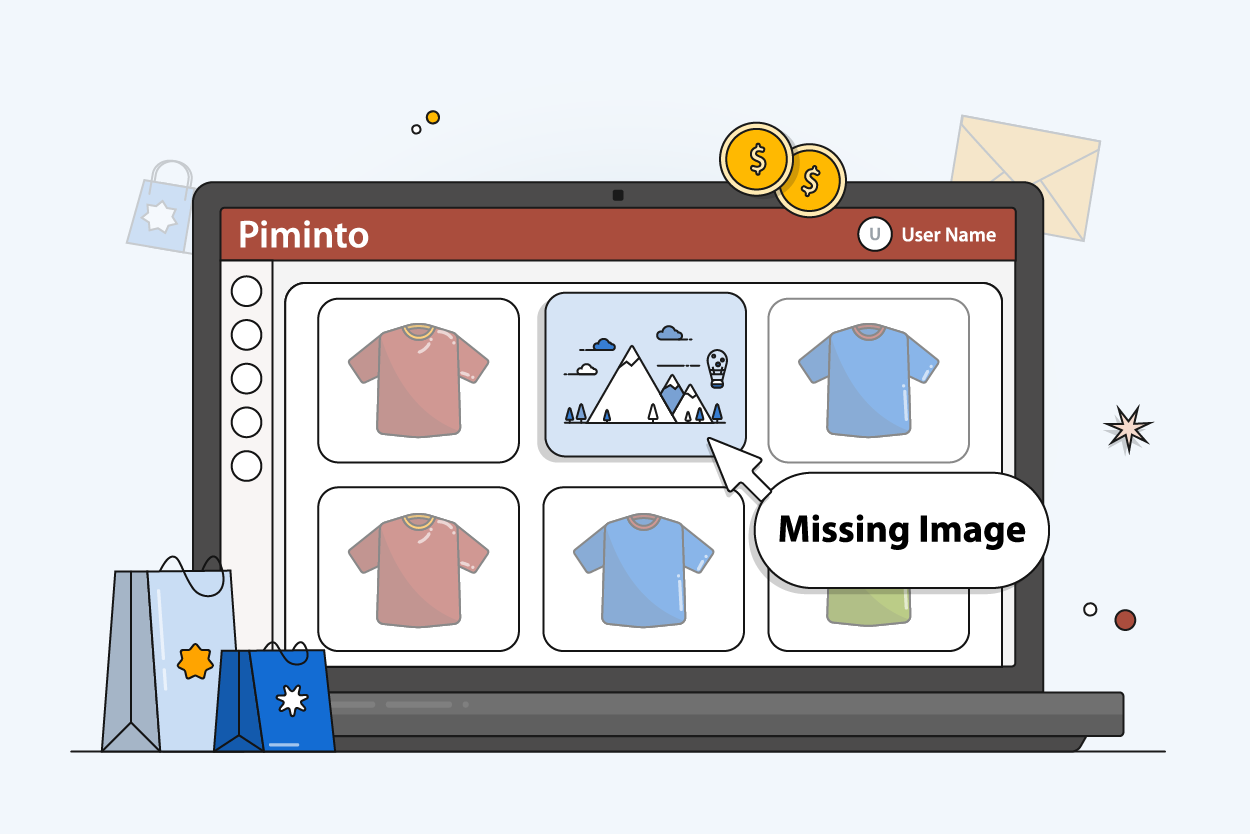
Missing product images are a silent revenue killer. If the pictures vanish from your storefront, shoppers see blanks and your conversion drops. Follow this five‑step checklist to hunt down the root cause and restore the visuals fast.
Step 1: Confirm Where the Product Image Disappears
First, verify the symptom on each channel. Does the image fail on the website, the mobile app, or both? Open the product page in a private browser window and look for a broken placeholder or an empty space.
Broken URLs, missingimg_urltags, or recent code‑editor updates can cause this exact problem. In some cases, the image tag may be missing entirely. Replicate the view on a plain HTML page to rule out CSS overlay issues.
Take a screenshot of the broken view. It will be useful later when you hand off the case to IT or a vendor.
By the end of this step you know whether the problem is global or limited to a single channel.
Step 2: Inspect the PIM Asset, SKU, and Variant Association
Next, open the PIM record for the SKU that shows the blank. Look at the asset field that should hold the image file.
If you use PIMInto, the asset manager lets you see which file is linked, its filename, and the variant it belongs to. The asset may be attached to the wrong variant, or the naming convention might have split the code incorrectly.
Product-link rules can use naming conventions to drive automatic links between assets and products. A mis‑matched pattern can leave the image orphaned.
Use PIMInto’s Help Center guide on adding a media asset to the DAM to verify the correct association. If the asset shows “unlinked” or points to a different SKU, re‑assign it to the right product.
When the asset is correctly bound, you should see the file name, size, and format listed. If the file is missing altogether, you’ll need to re‑upload it later.
Step 3: Validate the Image URL, Format, and Access Permissions
Now check the URL stored in the PIM field. It must be a fully qualified HTTPS link that points to a reachable file.
Paste the URL into a new browser tab. If you get a 404 or a permission error, the link is broken. Some teams store images behind a private CDN that requires a token; make sure the token hasn’t expired.
Wikipedia defines a URL as “a reference to a web resource” and explains how proper encoding avoids broken links. Uniform Resource Locator Use that guidance to confirm there are no stray spaces or illegal characters.
Confirm the file format matches the channel requirements. Shopify expects JPEG, PNG or WebP; a BMP file will be rejected silently.
By now you should have a working, correctly formatted URL that the PIM can serve to downstream feeds.
Step 4: Check Channel Mappings, Built‑In Feeds, and Sync Logs
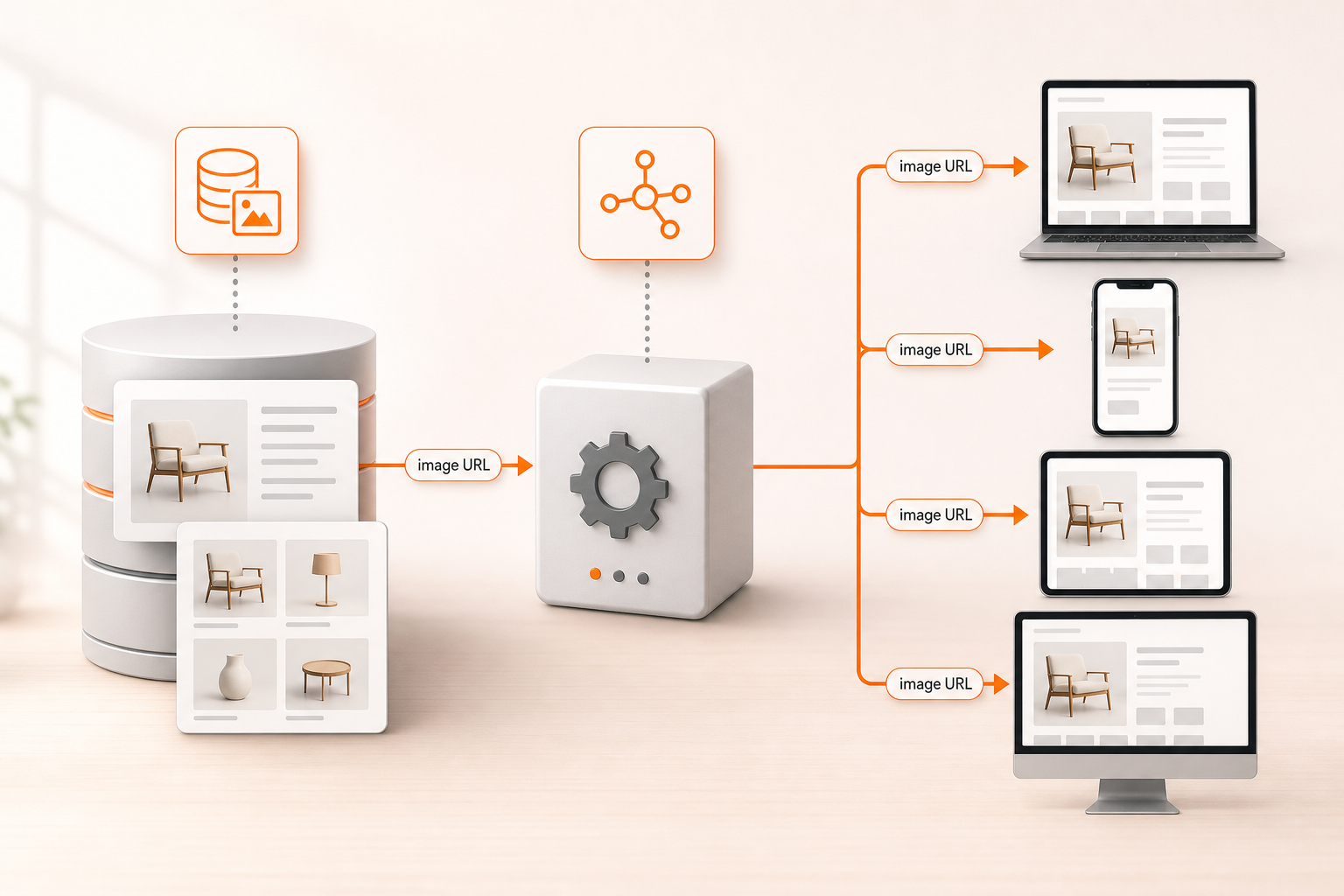
Each e‑commerce channel pulls images from the PIM through a feed. Verify that the mapping for the image attribute points to the URL field you just inspected.
PIMInto ships built‑in feeds for Shopify, Magento, Amazon and others. Open the feed configuration page and make sure the image role (e.g., “main_image”) is mapped to the correct attribute.
If the feed shows an empty column for the SKU, the mapping is broken. Adjust the mapping and run a test export.
Next, pull the sync log from the integration layer. Look for error codes like “ERR_IMAGE_NOT_FOUND” or “ERR_PERMISSION_DENIED”. Those entries pinpoint whether the failure happened during extraction, transformation, or loading.
Log entries often include timestamps. Compare them to the ERP audit log to see if a recent update overwrote the image URL.
Use PIMInto’s Product Image Management guide to double‑check best‑practice settings for each channel.
When the mappings and logs are clean, the feed will push the correct image on the next schedule.
Step 5: Resync the Correct Records and Prevent Recurrence
Now that you’ve fixed the asset link and the feed mapping, trigger a manual resync for the affected SKUs.
In PIMInto, go to the “Sync” tab, select the SKU list, and click “Force Sync”. The system will re‑export the product data and push the image to each channel.
Action | Why it matters | Result |
|---|---|---|
Force sync | Ensures the corrected URL reaches every storefront | Images reappear instantly on live sites |
Set validation rule | Blocks empty URLs from being saved | Prevents future blanks |
Enable audit logging | Captures who changed the image field | Provides a clear trail for later reviews |
After the sync finishes, spot‑check a few products on each channel to confirm the images load.
To stop the issue from recurring, lock the image attribute with a rule that rejects empty or malformed URLs. PIMInto lets you add a custom validation script directly in the attribute settings.
Finally, document the incident in your internal ticketing system. Include the original symptom, the root cause, and the steps you took. That handoff package speeds up future escalations.
For a deeper dive on building strong PDP assets, see The Complete Guide To Managing PDP Assets In 2026.
FAQ
Why are my product images missing only on one channel?
The image URL is likely correct in the PIM, but the channel’s feed mapping points to a different attribute or a stale file. Check the feed configuration for that channel and correct the attribute mapping.
Can a CDN permission change cause images to disappear?
Yes. If the CDN token expires or the bucket policy blocks public access, the stored URL returns a 403 error and the storefront shows a blank.
How do I know if the issue is an overwrite rule in the PIM?
Review the conflict‑resolution settings. If “last write wins” favors the ERP and the ERP sent an empty image field, the PIM will clear the image even though the original file is still valid.
What log should I inspect first?
Start with the integration middleware log. Error codes there tell you whether the pull from the PIM succeeded or failed before the feed was generated.
Do I need to re‑upload the image after fixing the URL?
Only if the original file was corrupted or missing from storage. If the file exists and the URL is now correct, a resync will pull the existing image without a new upload.
How can I prevent this problem in the future?
Set up a validation rule that blocks empty URLs, enable audit logging on image fields, and schedule a quarterly review of feed mappings to catch drift before it hits production.
Fix the broken links, align the mappings, and force a resync , your catalog will be back to full visual health in minutes.
Modified on: 2026-08-10
Blogs you might like
-
Bulk Import Products to Shopify: Step-by-Step
Adding products one at a time works for a handful of items and turns into hours of copy-paste for a real catalog. Shopify lets you bulk import or bulk upload products with a CSV file, and for larger or recurring catalogs there are apps, the Admin API...
-
Best PIM Software for Shopify in 2026
Shopify handles products well until the catalog outgrows it. Variants pile up, supplier files arrive in different formats, a second store needs the same products with different content, and spreadsheets become the real system of record. That is the p...
-

Jewelry Product Catalog Software: Managing Product Data, Line Sheets and B2B Catalogs
One engagement ring design can come in three metals, four center-stone weights and twelve ring sizes. Add natural and lab-grown versions, a wholesale price for boutiques and a separate price list for Europe, and a single design turns into hundreds of...
-
Beauty and Cosmetics Product Data Management: A PIM Guide for Brands
A lipstick launches in 20 shades. Each shade has its own barcode, swatch, product photo, shade description and stock status, and every retailer wants that information in a different spreadsheet. Six months later the brand adds a matte version and a m...